
November is only a month away. While I know that NaNoWriMo has largely started to wane over the past few years, I still practice it every year on my own with whatever novel draft I’m working on, just seeing how far along I’ll get or how my story is going to shape up.
But since I migrated to Gentoo this year, I put off reinstalling Scrivener on my system. I mean, I know I used Scrivener last year, at least partially, on my Power Mac G5 to give me more of a distraction-free writing experience, but I haven’t actually used Scrivener on my Linux system lately. That’s mostly because setting up last time was somewhat annoying for me. I had some troubleshooting here and there with the program not launching at first, and the thought of having to go through that all over again made me not want to actually reinstall it just yet.

Still, I knew I was going to have to actually reinstall Scrivener eventually if I wanted to work on my writing from my desktop. I mean, sure, I could have looked into other ways to write out the rest of my manuscripts. I could have tried switching apps or something, but I really do like Scrivener. I bought licenses for it on my Macs, my Windows systems, and even my iPad. I have over 12 years of writing history with it, and I don’t plan to stop using it anytime soon. That said, was I going to have to waste a little time installing Scrivener through Wine again, trying to remember what I did to make it look passable and work well enough?
That’s when I stumbled across Scrivenix.
What’s Scrivenix?
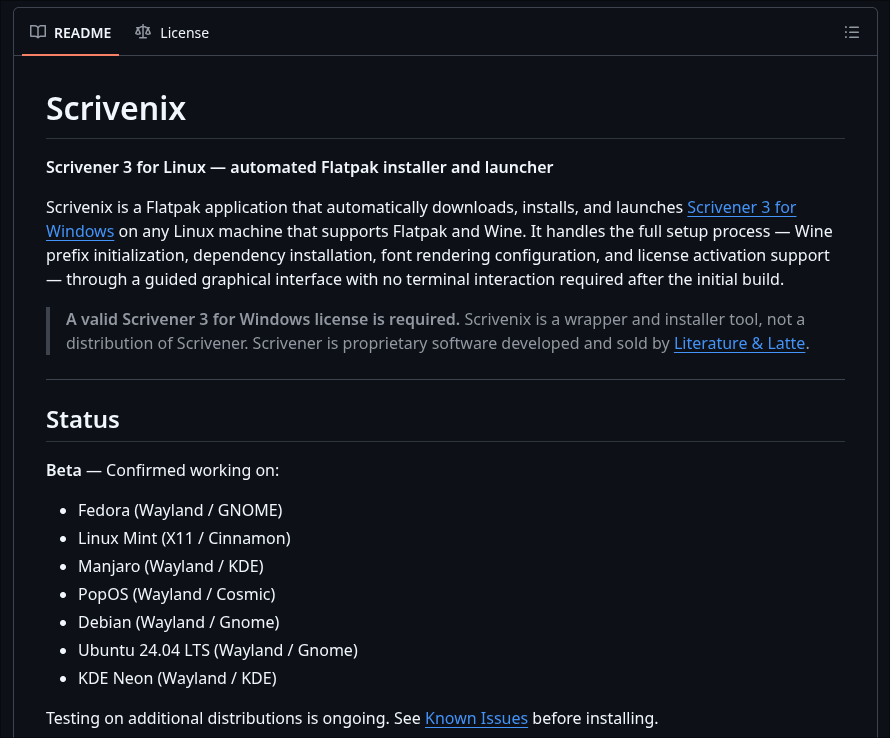
Scrivenix, a portmanteau of “Scrivener” and “Linux,” is an easy-to-use, automated setup script that does the following:
- Sets up a Flatpak environment with a self-contained Wine prefix that supports Scrivener 3 for Windows.
- Guides users through the setup process with dependencies in the wine setup.
- Deletes the files that would otherwise crash Scrivener when running it through Wine. (Looking at you,
texttospeech.) - Launches Scrivener for the first time for activation, also allowing for final adjustments to DPI settings before doing so.
There are other things it does, but you can see the full list on the Github page. Speaking of which, the page does make one thing clear: This is a setup script, much like one would use with Lutris to set up a game, that sets up Scrivener 3 for Windows. (A Lutris install script was even cited and mentioned toward the bottom of the page as well as the inspiration behind Scrivenix.) However, make no mistake: It’s not a distribution of Scrivener or anything of that sort, so a license is still required to use it beyond Scrivener’s built-in trial period.
Since now, I’ve run the script twice already, once on my Gentoo desktop, and again on my Gentoo ThinkPad, with the possible idea and intention to be able to write on one machine, sync changes, and write from the same place on another machine. Both of my Gentoo systems have Scrivener activated and running.
How I Set Things Up
While I am using Gentoo, I still have some Flatpaks enabled for when I do need them. Same with appimages. As a result, I only really had to install flatpak-builder. You can confirm what you do or don’t have first:
flatpak --versionflatpak-builder --version
If one of those (or both!) show commands not being found, update and install whichever to get those set up. The commands you enter will vary by distro. The Github has the commands listed for anybody running an Ubuntu, Fedora, or Arch-derivative conveniently listed, for example.
You’ll also need to be connected to Flathub, which should be a no-brainer if you’re following the instructions on Flathub’s website to set up Flatpak in the first place. Whichever distro you’re running, click it and go from there for more detailed instructions.
Once you have both of those set up, you’ll need to install the required runtimes.
sudo flatpak install --system flathub \ org.freedesktop.Platform//24.08 \ org.freedesktop.Sdk//24.08 \ org.winehq.Wine//stable-24.08 \ org.freedesktop.Platform.Compat.i386//24.08
Wait for these to download and install. It might take a while like it did on my desktop (over an hour), or it might be lightning-fast like it was on my ThinkPad (under 2 minutes).
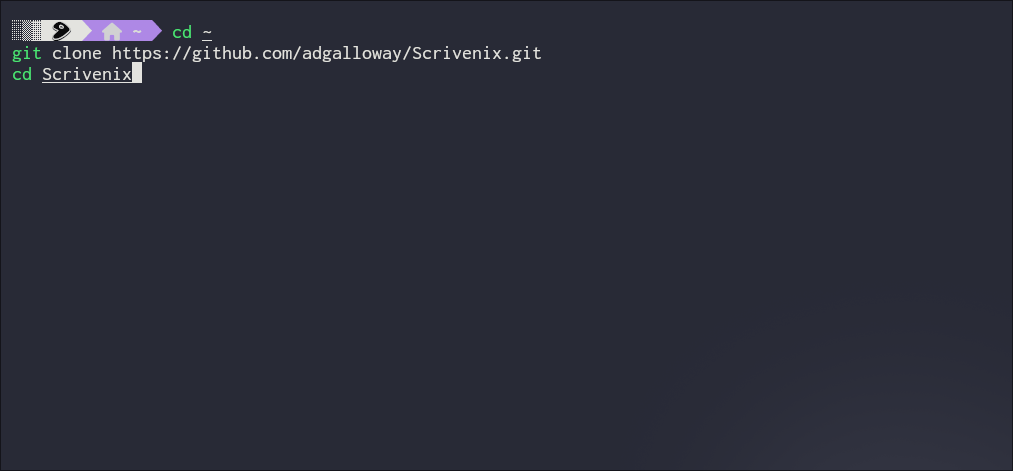
Once it’s finished and everything is good, it’s now time to install Scrivenix itself from the Github page. Assuming you have Git running and everything, run the following:
git clone https://github.com/adgalloway/Scrivenix.gitcd Scrivenix
This will download everything from Github and cd into the new directory. Within this new directory, start the build.
sudo flatpak-builder --force-clean --install --system \ build-dir com.local.Scrivenix.yml
Wait for it to finish. Once it does, try running it for the first time.
flatpak run com.local.Scrivenix
From here, a GUI window will launch to break down all the following setup steps. It takes care of all the configuration, the framework packages that need to be installed, and even erasing the texttospeech directory that otherwise crashes the app. From there, towards the final steps, the actual Windows-based installer for Scrivener 3 will appear.
In Case of No Mouse Cursor?
This is where I initially had trouble, as my mouse was not visible when the Scrivener installer launched. (For the record, I tested this on both Hyprland and dwm only to get the same behavior.) Moving this window around the first time I saw it on my Hyprland desktop caused it to disappear, but after recovering it, I figured out a workaround to finish the installation.
I had to use Tab, Shift + Tab, and Spacebar as needed to select relevant settings and options, with Enter to confirm on the relevant buttons. Eventually, I was able to finish the installer, and I only had to change DPI settings (recommended by the script around this step) for my ThinkPad.
Upon first time launch, the mouse cursor will be completely fine. You will then be asked if you would like to give Scrivener 3 for Windows a trial run or enter an activation key. Since I have an activation key already, I simply activated on both of my computers, although I did realize that copy/paste wasn’t working, leading me to manually enter in my registered email and license key.
After this, I can easily launch Scrivener from my rofi setup by typing out “Scrivenix,” but it should appear under the default apps menu by this point for convenience.
Actual Experience Using Scrivenix
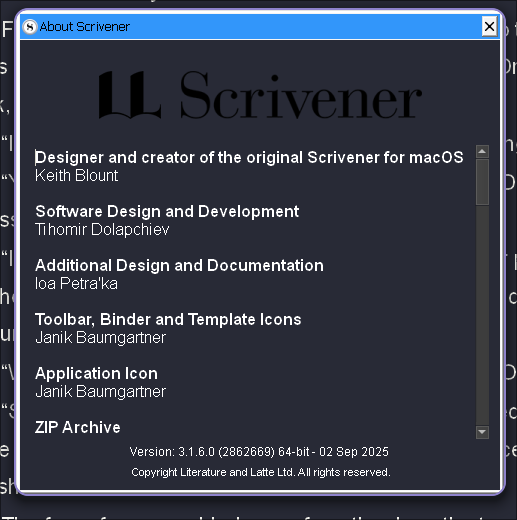
Using it is exactly as I expected with zero real issues so far. In fact, some of the small things the script did make me a bit more confident running Scrivener this way than the old way I used to, where I had to set the whole thing up on my own with Arch and hope I didn’t mess something up in Wine.
Scrivenix has a few quality of life tweaks like having ClearType pre-configured or read and write access to home/Documents folder right out of the box, for starters. Speaking of ClearType, the only real complaint I have is that I don’t really care for the way fonts look in general, although that’s not really Scrivenix’s fault. There is only so much we can do with fonts when running a Windows program through tools like Wine, and I could always change the fonts I’m using in my manuscript if I wanted.
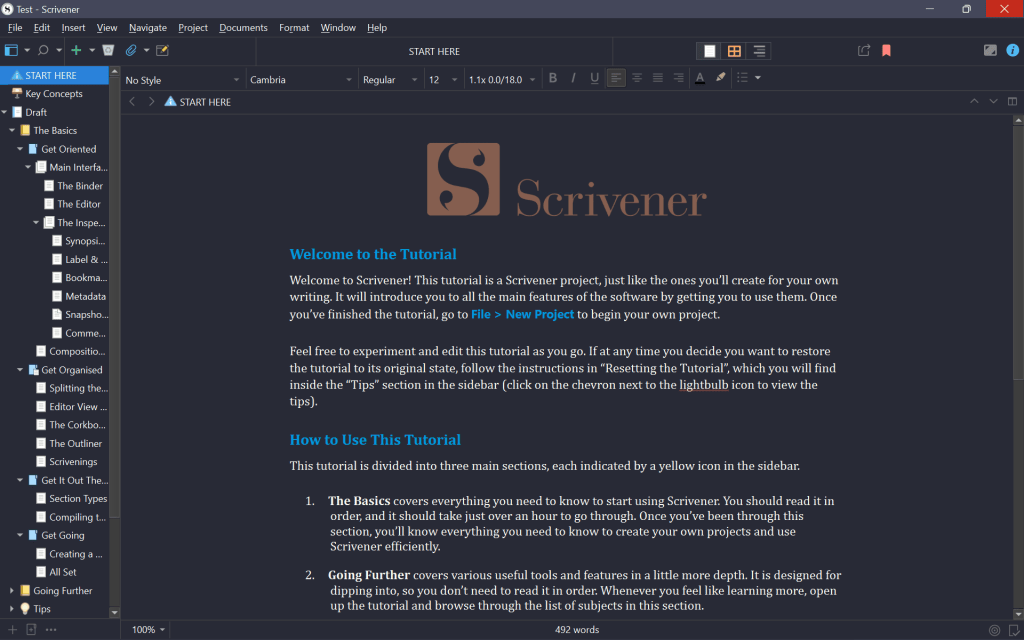
I suppose I don’t like that Scrivener defaults to an eye-blinding light theme upon install, but it’s easy to go into the settings and fix that. Not only is it possible to switch to one of multiple darker themes, but it is perfectly feasible to install new Scrivener themes from file. Since I’m running Dracula on both my desktop and ThinkPad to complement my Gentoo setups, I decided to install the official Dracula theme for Scrivener for Windows.
Plus, even if I decided that Scrivenix wasn’t for me for any particular reason, its Flatpak-based nature makes it quite easy to uninstall.
flatpak uninstall com.local.Scrivenix -yrm -rf ~/.var/app/com.local.Scrivenix
Final Thoughts So Far
Considering the iPad version of Scrivener only supports Dropbox, I had to jump through some other hoops to get my manuscripts to sync on it. It involves some other programs and scripts, and it largely overshadows Scrivenix itself. But despite that, I have things largely set up so that I can sync and write in my drafts from my two Gentoo machines, my MacBook, and my iPad Pro.
But other than that, my experience using Scrivenix has been nothing but smooth. I just have to be mindful to close my projects before syncing manually. I would use this script a third time if I really had to, as I know it works and what to expect from it. If I can activate my license a third time, however, might be a different story I don’t want to push on.
Have you ever used Scrivener before? Does it work great for you, or do you simply use something else for drafting manuscripts or creative writing in general? If you have used Scrivener, have you ever tried it out on Linux before with Wine? Would you consider running Scrivenix to try it out instead? Anything else you would like to share or comment about? Whatever it is, feel free to share it down below!

