

You may not know it about me, but I was a longtime YNAB user. I really liked how good the app was at letting me track spending, finances, and how much was being spent in one category or another. In fact, using YNAB several years ago is the reason I no longer have an auto loan in the first place! Several years earlier than scheduled, I might add, so you could say that I am a bit of a YNAB success story.
But as the years have passed, I haven’t been a fan of the YNAB subscription cost. Even as someone who originally bought YNAB 4 way back in the day, I don’t care for how we need to continuously pay for this online app, paying north of $100 a year if we pay upfront as well. I’m definitely not a fan of subscription-based services in general either. In fact, that’s why I started using a server in the first place, so this led me on a search for a proper YNAB replacement.
Actual Budget

I tried using Actual Budget for a few weeks, and I’ll give credit where credit is due. If you want something that looks and feels a lot like YNAB 1-to-1 with a GUI, this is currently as good as it gets.
It’s a self-hosted application that you can run on a server, so I chose to give it a good spin on my Mac mini.
Everything said, I still found Actual Budget quite impressive for what it was. Aside from it being so on-par with YNAB, it’s completely free as long as you’re willing to host it. Still, I ultimately found myself not wanting to use it after a while for a few reasons.
- Actual Budget’s UI, while it’s similar to YNAB’s, isn’t anywhere near as polished. Using it almost felt like using YNAB, but I’d see some rough edges here and there that made me wish I was using that instead.
- Logging into it is not great. It doesn’t have a real, dedicated system where you login with an email/username and password. As a result, my attempts to secure it made everything more inconvenient to use in case I wanted to login on the go or from my phone.
- At the time I tried it, there was no third-party front end or official app to login to my Actual Budget. I was stuck using my mobile browser if I wanted to add transactions. While I love using Brave enough on my phone, using Actual Budget on it felt a bit clunkier than I would have liked.
After enough time with it, however, I wasn’t all that impressed and wanted to try something else entirely.
Liquid Budget
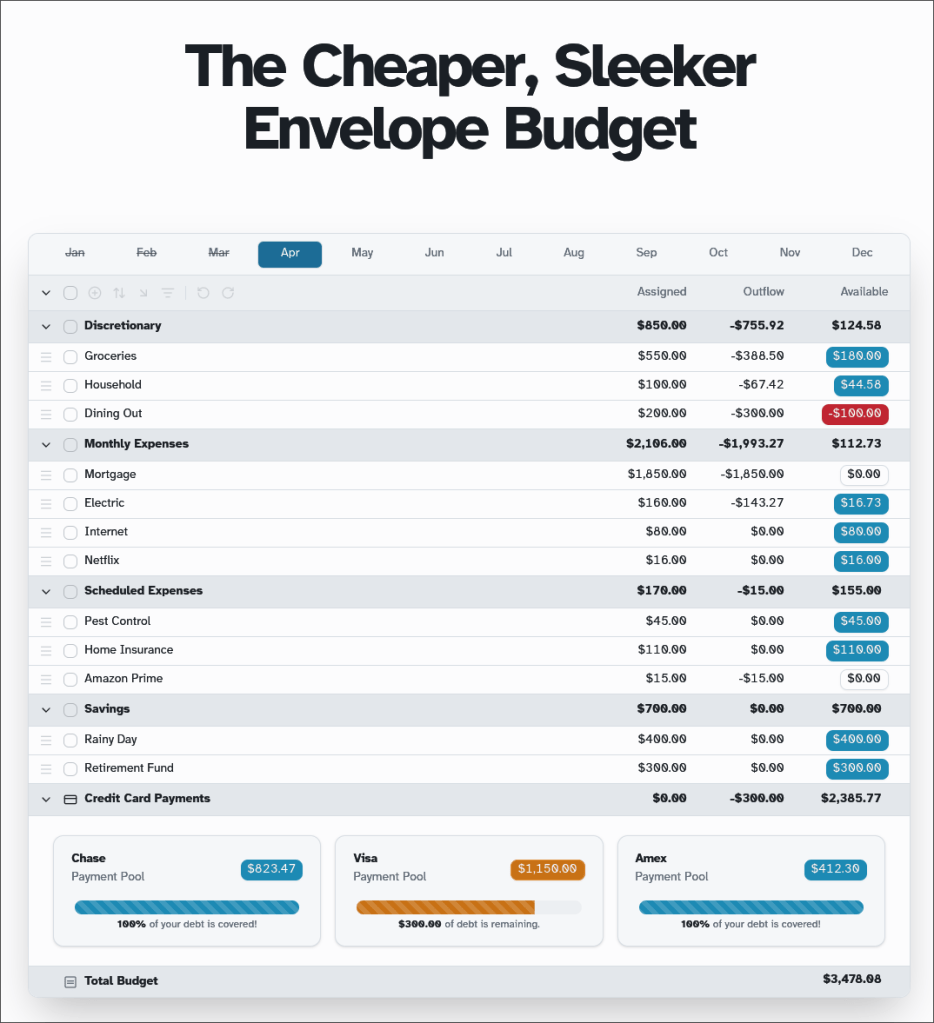
Liquid Budget came next because it was developed by a former YNAB subscriber who, like me, became dissatisfied with the rising costs. He sought to develop a simpler app that cost only a fraction of what YNAB offered.
If there’s anything I’ll definitely praise Liquid Budget for as opposed to Actual Budget, it’s that there are dedicated apps available for logging into it on the go. Although I largely use the apps just for glancing at my numbers on the go instead of adding transactions, it was nice to have this as an option.
Although Liquid Budget itself is incredibly impressive, it wasn’t all that intuitive in the limited time I tried it out. Tasks like putting money into buckets required more clicking around for me, ultimately leaving me more confused and annoyed at how and why these small parts of the UI had to be different in the first place. The longer I floundered with these issues, the less patient I became, and that led to me not wanting to really spend time with the app after my initial setup of accounts. Maybe I could have given the app more of a chance? Perhaps, but that doesn’t change how I still found myself wanting a different app entirely.
Still, I have to hand it to the dev for allowing such a long trial period to really make sure anyone trying it out was satisfied with it before committing to a (much cheaper than YNAB) subscription. That’s a genuine type of commitment and confidence in one’s own product that really shows, and I do find that admirable.
In short, I wasn’t all that happy with Liquid Budget either. Maybe it was my mindset, or maybe it was something about both Actual Budget and Liquid Budget, or maybe I expected any GUI app to be comparable to YNAB to the point that any differences alienated me? I don’t really know for sure, but I still needed a different way to track my spending.
Maybe I could give one of those random budgeting apps on the Google Play store a shot? Or I could just go back to basics and budget with pen and paper?
hledger: The Unlikely Solution
Sometime shortly after abandoning Liquid Budget, I stumbled across this video in my YouTube recommendations about a terminal app called hledger.
In short, it’s a free, terminal-based app that I can easily run on my Linux and Mac systems. Installing it was a snap (even with the entire Haskell stack), and it looked powerful and reliable. Then I thought to myself, why not? Sure, it has no real GUI (kind of; more on that in a bit), but what do I have to lose at this point in my quest to replace YNAB?
From there, I installed it using my standard package manager on Linux and with Homebrew on macOS. From there, however, I did need Haskell packages installed; so that’s what the h must stand for in hledger.
Getting Started with hledger
The only real hurdle I came across at first was the initial setup. I had to run the following command:
hledger add
This was supposed to help me set up my accounts initially, enabling me to enter in my starting balances. The values you would enter for this initial setup might look something like this.
assets:checking$800assets:savings$2500assets:cash$73.50
Once you’ve entered in accounts this way, you can enter in “equity,” which deals with entering the negative combination of these balances together. Typically, this is the only time you ever enter in an equity transaction.
equity:opening-$3373.50
Actually Using hledger for Transactions

The way hledger works, which took me time to really “get,” is that each transaction has to come from somewhere. The inflow and outflow have to be tracked in each transaction. For instance, after the initial setup, I could type hledger add again to record a single transaction like so.
Date: 2026-03-17Description: Two 6-packs of Guinness for St. Patrick's Day PartyAccount 1: expenses:fun:BoozeAmount 1: $25.96Account 2: assets:checkingAmount 2: -$25.96
This example transaction tells hledger that I spent $25.96 of fun money on beer. This money has to come from somewhere, and that’s the checking account. This is a change from using categories like in YNAB; instead, the first “account” of an outgoing transaction like this is the category itself.
Split transactions are possible as well as long as you keep entering in a positive balance before eventually offsetting with a negative amount that covers the whole thing.
Date: 2026-03-17Description: Groceries and Beer for St. Patrick's Day PartyAccount 1: expenses:food:GroceriesAmount 1: $14.04Account 2: expenses:fun:BoozeAmount 2: $25.96Account 3: assets:checkingAmount 3: -$40.00
But what about money coming in? That would look something like this instead:
Date: 2026-03-18Description: Tax ReturnAccount 1: assets:checkingAmount 1: $1794.00Account 2: income:irsAmount 2: -$1794.00
Income is largely tracked in the exact same way with paychecks. Just change it so that you are describing that it’s pay day, and change account 2 to say something like income:salary.
Date: 2026-04-01Description: Paycheck 1Account 1: assets:checkingAmount 1: $2951.00Account 2: income:salaryAmount 2: -$2951.00
Help, I Screwed Up A Transaction!
Thankfully, hledger is quite forgiving in multiple ways. If you happen to mistype an amount or category, for instance, you can end the transaction by either typing a “.” when prompted or just hitting Ctrl + Z to end the process from starting hledger add. From there, you can start again because your log won’t be updated with the transaction just yet.
If you need to go back and remove a transaction you already entered, that’s possible as well. For instance, let’s say you had buyer’s remorse and wanted to return something, you can open the default hledger file you set up. hledger will start one for you by default, but I started a separate one in a directory I can access on my M1 MacBook and Arch desktop via Syncthing.
vim path/to/main.journal
From there, open your journal file in the text editor of your choice to manually edit the amounts or transactions on your own. It’s quite straightforward to erase balances or update what was recorded in plain text, thankfully.
Commands to See More

If you want a quick log of everything you’ve already entered in, simply type the following:
hledger print
From here, you will see a list of your interests ordered by date. You can scroll up and down using either the up/down arrow keys or the Page Up and Page Down keys. To exit this view, just hit Ctrl + Z or Ctrl + C to terminate the process.
To narrow things down, try using key words related to your categories like so:
hledger print groceries
To quickly see all of your assets without the expense categories clogging up your view, simply type the following:
hledger bal assets
The use of bal does open the door for searching through other categories as well. For instance, if you wanted to see all of your spending in one category only during the current calendar month:
hledger bal expenses:eating-out -p thismonth
To see your accounts in the form of a balance sheet, type the following command:
hledger bs
This command should show your balance sheet with your overall net worth.
To see the overall income versus spending, type this command instead:
hledger is
You will be able to see your income weighed against all of your expenses this way with easy-to-read formatting.
One Last Cool Trick

There are other useful, great commands to enter into the terminal to access and use hledger, but there also exists a sort of UI that can be accessed within the terminal. All you need to do is type the following:
hledger-ui
This will bring up a browseable interface where you can navigate using arrow keys and enter to see your balances. Hitting the a key will enable you to easily add a transaction in the way you have come to expect from hledger.
However, this does bring up a light theme in my experience trying it. To enable the dark theme, type the same command with this flag:
hledger-ui --theme=dark
It’s hardly a modern app with a complete GUI, hearkening back to the days of keyboard-driven DOS applications, but it’s nice that the option is even here.
My Only Real “Drawbacks”
So far, I’ve come to love hledger after using it for a few weeks now. I didn’t think this would be the case after failing to use other YNAB competitors, but now I can’t imagine managing my money outside of the terminal at this point.
However, I have only one notable issue, and it’s not really hledger’s fault. Rather, it’s a mindset thing for me. I was used to managing my budget with YNAB in a way that I would manually create categories of how much I wanted to spend in one category or another. While I can categorize transactions in hledger, it only lets me track how much I’ve spent in that category rather than what I have remaining in it.
Still, that doesn’t make it useless for my needs. I can still set a specific amount to spend, but I can simply track it and see if I’ve gone over or got close. For instance, if my girlfriend and I promised to spend $200 on groceries for the entire month, we can see our progress through the month:
hledger bal expenses:groceries -p thismonth
However, I have yet to find a way to set a specific, fixed number to not go over. As a result, it’s not a direct one-to-one replacement for something like YNAB.
Despite that shortcoming, my girlfriend gladly volunteers to keep track of our overall spending in several key categories, so I’d say hledger largely still works for us.

While I can’t practically use a mobile app to check my hledger, it’s still technically possible for anybody who’s got some ssh skills. If you have an Android or iOS device with a preferred ssh app, you can set things up to ssh into your host machine, check your balances, and run shortcut commands with aliases.
At first, I was simply syncing my journal file with Syncthing on my server, allowing my MacBook or Linux systems easily update my transactions, but if I really wanted to, I could simply host the journal file on my Mac mini and only use ssh to add transactions from any machine, even something as old as my Power Mac G5.
Are you a YNAB user? Or do you budget some other way? Or worse yet, do you not budget at all? If you’re thinking of budgeting, are you considering hledger as an option or not? Does the idea of being able to budget and track transactions for free using the terminal sound appealing to you? Maybe you hadn’t heard of Actual Budget or Liquid Budget but decided to try those out after reading this. Whatever it is, feel free to drop a comment below. I’d love to know what you think of this subject.

