

I’m already approaching an entire year of using my current second brain for my personal knowledge management. In case anybody doesn’t remember, I stopped using my old one because it became so bloated with information that didn’t quite matter to me. Instead of scrapping the idea altogether, I decided I just wanted a fresh start with PARA all over again.
Despite everything, I still wasn’t using my second brain all that much compared to my notebooks. While Mr. Hyde certainly has a stationery addiction and still bullet journals regularly, there are just some things that are more useful to track and take note of digitally.
On the bright side, at least I was much more intentional this year about my second brain. I used it for more careful tracking and note-taking instead of trying to write down and connect everything that tickled my fancy in that moment. Still, I did eventually stumble across something called the “Zettelkasten” system or method. I had heard about it in passing a few times, but didn’t think too hard about it until I saw it pop up again here or there.
What’s a Zettelkasten, anyway?

Zettelkasten is a German word meaning “slip box,” “note drawer,” or something of the like. Regardless, both give a good idea what the system is about: You track small notes and categorize them into uniquely-named categories based on their content or context. This way, finding your notes becomes even easier than ever.
Interestingly enough, Zettelkasten systems predate modern technology, as they were literal note card drawers with meticulous labeling and tracking. For anybody who has read Sherlock Holmes, Holmes had his own note-taking and storage system referenced in A Scandal in Bohemia. When the King of Bohemia brings up Irene Adler, Holmes proves how little he cares about famous figures of the time when asking Watson, “kindly look [Miss Adler] up in my index.”

Watson then takes a brief moment to describe how Holmes “had adopted a system of docketing all paragraphs concerning men and things” for those times he couldn’t quite easily recall something relevant to a case. Considering it didn’t take long for Watson to find the card describing Miss Adler, we can assume Holmes had the foresight to label and organize appropriately in a manner similar to a Zettelkasten.
Regardless, the idea of using a Zettelkasten system is quite old. A famous example comes from Niklas Luhmann, a 20th century thinker and educator who was said to have saved and sorted tens of thousands of index cards with his notes and ideas. He used the system to make linking ideas organically possible in a time before computers were ubiquitous. Many credit his system with his extensive work in writing articles and literature.
These days, many people still commit to starting an “Antinet” Zettelkasten, which one would assume means “anti-internet” or “anti-digital.” However, that is a misnomer. Rather, ANTI is its own acronym (analog, numeric-alpha, tree, index) while “net” refers to a curated “network” of notes once the system is built. It’s quite comparable to PARA from the Second Brain method, although there is almost always an analog connotation when people refer to Antinet Zettelkasten. There are many tutorials out there that try to demonstrate how to create a physical system in this way using your own notecards and boxes of choice, although a digital Zettelkasten system can still be extremely convenient and effective. All you need is your favorite note-taking software to get started.
Making Zettelkasten Understandable: A Simple, Real World Application

I’ll be perfectly honest: I didn’t get started with Zettelkasten sooner because it looked intimidating to me on the surface. I would try to look up tutorials on it, but a lot of them mostly danced around the idea. If not, they pointed out little aspects of it rather than explaining how to easily get started. That said, how can we make Zettelkasten a little easier to wrap our heads around?
Assuming you didn’t use PARA, let’s say you wanted to save a few recipes you didn’t want to lose track of. You could set up a category with an identifier code (these will become clearer in a moment) and then name it “Cooking and Recipes,” so you could easily find both the code or the name of the category. Then you would use the reference code to help you name the recipe in order to make it easier to find.
To make it easier to picture, I could title the folder “1 – Cooking and Recipes.” (Note the number!) If I stumble across a great recipe for chocolate stout cupcakes, I could put this recipe into this folder with the name “1A – Chocolate Stout Cupcakes.” (Note the reference code of “1A” at the start!)
But let’s say I find a different recipe somewhere for lemon pepper shrimp. Considering one of these recipes is for baking while the other is for cooking on a skillet, I may want to tell these recipes apart better. To do that, I could create two new folders under my original “1 – Cooking and Recipes” folder. It will involve renaming the recipe itself, of course, but I could have folders titled “1A – Baking” and “1B – Stove Top.” I could then rename the cupcake recipe “1A1 – Chocolate Stout Cupcakes” so that it retains its unique reference code. If I stumble across a great bourbon buttercream frosting recipe to add to the cupcakes, I could save that in the same folders as “1A2 – Bourbon Buttercream Frosting.” Meanwhile, the shrimp recipe is saved under the second folder as “1B1 – Lemon Pepper Shrimp.”
1 - Cooking and Recipes
|
|__1A - Baking
|   |
|   |__ 1A1 - Chocolate Stout Cupcakes
|   |
|   |__ 1A2 - Bourbon Buttercream Frosting
|
|__1B - Stove Top
    |
    |__ 1B1 - Lemon Pepper Shrimp
A visual representation of what I described. Notice how all of the nested notes include the name of the folder they are included under in some way, which forms the reference codes.
The above representation can also be used as a “content map,” which you can create as a separate note to easily let you find your most relevant, revisited notes through further linking and interlinking. These notes, while looking a bit like a table of contents, serve to let you see the big picture more easily. The biggest advantage is that you can see manageable sizes and parts of your second brain without it becoming overwhelming seeing everything all at once.
You could also do this with more folders nested within folders by continuing to add the next logical letter after the numbers. A tip I have is to make the following letters lowercase to help tell them apart more easily. (e.g., 1A1a, 1A1b, and so on.) Now, if I feel like baking something, I can open search and type “1A” to start finding immediate results and ideas for baking recipes.
Why use the Zettelkasten System?
I can think of a good handful of advantages to this system over others.
- Finding notes can become even faster and more efficient, especially if you already have a search feature on a digital note-taking app.
- Content maps let you more easily see how your relevant notes connect and relate more easily to one another.
- Notes are uniquely-named, making them easier to find and much more difficult to confuse or mix up with existing ones.
- Zettelkasten typically encourages brief, short, useful note-taking, making it easier and faster to add relevant, valuable information to your growing system.
- Notes typically feature references or sources to help you think about how you interpreted your information rather than simply hoarding as much information as possible.
Should I Abandon PARA?
I won’t go on at length about PARA, Tiago Forte’s organization system, here, as I’ve already discussed it when I talking about how I first built my second brain. However, there seems to be a misconception that adopting Zettelkasten organization means you need to abandon the PARA method entirely.
However, I want to argue this is not the case; the two are certainly not mutually exclusive in any way. Rather, Zettelkasten and PARA can coexist and make your second brain even more efficient and intentional than one ever thought possible. If anything, working the Zettelkasten system into my existing PARA-based second brain made everything much more streamlined.
I could also make a reasonable argument that those who find getting started with Zettelkasten too daunting (e.g. “What should be the first thing I write?”) may love using PARA as a structural foundation to get started.
Zettelkasten and PARA: Together at Last
How exactly do we get started? For the sake of example, I’m going to stick with Obsidian, as it’s what I know best when it comes to note-taking software. If you plan to use Notion or something else, I’ll assume you know what you’re doing. I’m also going to keep it relatively simple with only necessary Obsidian plugins. In fact, I’ll only recommend one core plugin: Templates. Enable this one. Obsidian users might see “Unique note creator” on the list specifically naming “Zettelkasten” systems as an example, but I’m going to keep this one disabled, as Templates is more than enough as a plugin.
Next, go ahead and create your basic PARA folders, but also include an inbox for immediate notes, fleeting thoughts, and other things you may not know how to categorize right away. The point is to keep things as frictionless as possible rather than wondering where you should start a note right away, a concern that was addressed by Tiago Forte when he came up with the Second Brain system.
0 - INBOX
1 - PROJECTS
2 - AREA
3 - REFERENCE
4 - ARCHIVE
Use the PARA system exactly as you would otherwise use it according to Forte’s Second Brain system.
- Projects are for things you work on that have a definitive end date sometime in the future.
- Area is similar to projects, but you use this for tracking things that don’t really have an end date, such as finances.
- Reference is for things you want to come back and reference at later points. This may also be the category you find the most useful for converting into a Zettelkasten system, although the rest of your second brain will still benefit.
- Archive is for any notes, ideas, or projects that are no longer relevant. Just throw them into this folder if it’s not useful anymore.
Pretty simple stuff so far. Here’s where the Zettelkasten parts come into play. It’s extremely simple. All you need to start doing here is starting your folders within PARA with their relevant numbers and letters. Going back to my prior example about saving recipes, let’s say I wanted to track that under “3 – REFERENCE” for later use.
0 - INBOX
1 - PROJECTS
2 - AREA
3 - PROJECTS
|
|__3A - Cooking and Recipes
|   |
|   |__3A1 - Baking
|   |   |
|   |   |__ 3A1a - Chocolate Stout Cupcakes
|   |   |
|   |   |__ 3A1b - Bourbon Buttercream Frosting
|   |
|   |__3A2 - Stove Top
|       |
|       |__ 3A2a - Lemon Pepper Shrimp
|
4 - ARCHIVE
Here’s how my previous example would look in a Zettelkasten and PARA system.
Now if I ever feel like baking those cupcakes, I can open up my Obsidian search and type 3A1 to get suggestions from my baking folder. From there, it’s only a few keystrokes to open the note right away.
Is that really all there is to it?
Well, yes and no. If you wanted to only adopt this part of Zettelkasten, then you are finished. You would still get the benefits of finding notes much faster with unique identifiers and categories within the PARA hierarchy. After all, it’s going to be your second brain, so you should decide for yourself what to use and what works best for you. But if you want to take things a step further, if you want things to be more streamlined, it’s time to break out the Templates plugin.
Set up a designated folder for your templates. To keep everything simple, I started a dedicated templates folder in my Inbox. I titled it “00B – TEMPLATES” in case anybody is curious, but if you insist, you really can start this folder under Reference or anywhere else you like.
Navigate to the core plugins menu and click the settings gear under Templates. You can select the directory you created for your templates here. If you insist, you can also change your time formatting, but I kept everything pretty simple with YYYY-MM-DD and 12-hour time.
Exit the plugin settings and actually head to your Templates folder next. You’ll create two templates with these names:
- Zettelkasten Note Template
- Map of Content Template
If you really insist on doing just one, make sure it’s the note template, although I still recommend doing both. Again, use what you feel will work best for your needs.
Open up “Zettelkasten Note Template” and paste the following in:
## {{title}}
**CREATED**: {{date}}, {{time}}

### References
1.
If you also want to do your content map template, then open up the “Map of Content Template” and paste this in:
## {{title}}
Using These Templates for Zettelkasten

Now set everything up so you can easily insert a template into a new note. I believe there are multiple ways to do this, but my favorite way is using the command palette in Obsidian (Ctrl + P) and typing in “Template” to bring up the “Insert Template” command. From there, select either of the two templates you would like to use. Most of the time, it’s going to be Zettelkasten Note Template.
From here, start typing out some information on the note you’re taking. You can use bullet points to keep things short and concise, although you ultimately have all the control and can make them as long as you like. Additionally, you can insert references and sources at the bottom so you can refer back to websites, books, or other places where you find info.
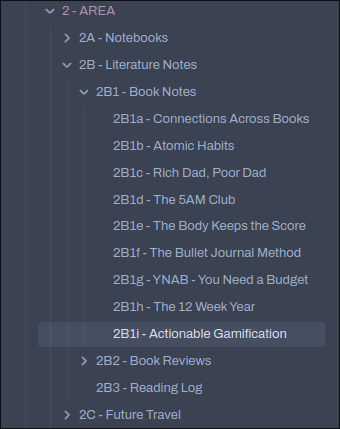
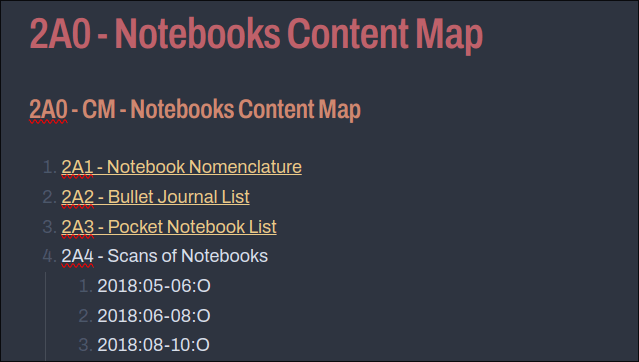
When you have enough notes and want a way to come back to them, you can create a content map note using the second template. Through here, it’s as simple as inserting the template and then inserting links to your other Zettelkasten notes here. As stated, the purpose of these content maps is to help you still see the forest for the trees. You can get a bird’s eye view of everything without having to fly all the way up into outer space.
A Bonus Tip: A Content Map for Your Content Maps?
If you really like the content map concept, you can use a “master” content map to quickly link to all of the rest of your specialized content maps throughout your second brain. This makes it even simpler to navigate through it when you want to see how things connect.
To do this, all you’ll need to do is create several content maps in your setup. Once you have several you do want to visit, create a master one by using the same template, then link to all of those content maps from within. It really is that simple.

At the very least, if you have a lot of “intermittent packs,” as Tiago Forte called them in the Second Brain system, you can use content maps to easily navigate back to the ones you need to revisit most.
What About Archiving?
I still think it’s worth keeping the A in PARA, but it’s easy to wonder what to do when you move something into the archive. Are you supposed to rename everything to reflect how it’s now in the archive folder by changing that first number to a 4? If so, does that mean entire folders that are archived need all of their notes renamed as well?
Instead, I recommend keeping it simple. Treat the archive the same as you normally would in the Second Brain system. If it’s not useful anymore, just throw it in there. No rename necessary. For instance, I had a dedicated folder for my job search earlier in the spring, and after I accepted a new offer, I simply dragged that folder into archive. I didn’t go through the trouble of renaming it from where it was in my Projects folder.
If you find this might be inconvenient for an existing content map, you can either remove entries that have been placed into the archive or perhaps add a label indicating you moved it into the archive. Other than that, it’s better to keep things simple.
BASB and Zettelkasten Can Coexist
I’ve been using this joint setup for the past several months now, and I love it. While the Zettelkasten changes might seem small, I do find them invaluable for making my newer second brain much more useful, intentional, and meaningful.
The best part is that I found a simple and effective way to make the Zettelkasten system and idea work in my existing second brain. I didn’t have to throw everything out and start all over again. Now I’m reaping all of the advantages of both.
Do you use a second brain or Zettelkasten system? Have you already combined the two before I did? How well has it served you? Conversely, did you think that the two were mutually exclusive before? Incidentally, have you ever had chocolate stout cupcakes? Let me know your thoughts in the comments. I’d love to hear from you.
 Sudo Science
4 responses to “Combine Your Second Brain with Zettelkasten”
[…] can’t just attempt something like this without setting a few ground rules. I used my Zettelkasten Obsidian system to write a few rules for myself in a designated place that I will always see […]
LikeLike
[…] https://sudoscience.blog/2024/12/27/combine-your-second-brain-with-zettelkasten/ […]
LikeLike
[…] bloated for its own good. I wanted a clean slate, and I even tried to enhance my second brain by implementing (what I had mistakenly believed at the time was) a Zettelkasten naming scheme. While that did help somewhat, it wasn’t really […]
LikeLike
[…] How I foolishly attempted to mix Zettelkasten-style alphanumeric filing with PARA a while back (which proved to be a mistake in more ways than one). […]
LikeLike