

I’ve made it rather well-known that I’m a big fan of the Awesome window manager on Linux. I still use it regularly on my Arch system, but what about my Fedora workstation?
While I do have Awesome installed on Fedora, I’ve found myself using it less and less. It has nothing to do with my i3/XFCE-hybrid setup on Fedora either. Rather, I’ve found myself actually liking GNOME.
I know what you might be thinking: “Really? GNOME? Why?”
While it is a fully-featured desktop environment and all, I’ve found extensions to make it feel a little more like a tiling window manager. Upon discovering the extensions, I started to use Fedora almost exclusively with this setup while still using my Awesome WM setup on Arch.
The best part? It’s not a lot of setup. Don’t expect to see a bunch of the go-to stuff everybody always recommends installing like Dash to Dock or anything; I only needed a handful to get something that feels rather comparable to my experience using a WM. In fact, there was only one extension I seriously needed to get the coveted tiling window experience on GNOME. A few other changes were either smaller extensions or just minor changes to settings within GNOME itself.
Space Bar

I’ll start off small. If you wanted workspaces that feel a little more like what you have on i3, then Space Bar has you covered.
Space Bar does exactly what you would think it does based on glancing at the image above. In case you’re unaware, it gives you workspaces that feel a little more like what you would have on a tiling window manager. You can configure almost anything about it, such as how to add new workspaces, how to move windows to other workspaces, and the appearance of how your workspace indicators look or where they appear. If you don’t like them in the top-left as pictured, you can move them to the center or right side of the panel.
I like how it works overall, but there’s just one feature I wish I could get on it: Independent workspaces on each monitor. If I have one workspace open, let’s say 1, I can open a new workspace, 2, should I want to move things to another workspace. Now, if I have one monitor, that’s the end of that and it’s all simple.
Unfortunately, if I’m using two or three displays, all of them are on the same workspace at the same time. If I’m on workspace 1, all of my displays are simultaneously. To see anything on 2, all of my other displays will also switch when I do. I’m not sure if this is a limitation of GNOME or something, but a traditional window manager lets you have workspaces independent of other displays, which can make multiple displays that much more productive and usable. It’s likely unfair to hold this limitation against the developers.
Something else I’ve had an issue with is how Super + 2 works perfectly fine on Fedora to add a new workspace past the default workspace 1, yet doing the same on my Arch system inexplicably launches the GNOME Software store. I’m still not 100% sure why this is the case, as I’ve already explored the keyboard shortcuts menu and see nothing mapped to that shortcut. I’ll update on this should I find the root cause.
Still, I recommend Space Bar for making my GNOME experience feel a bit more like a tiling window manager in terms of aesthetics.
Forge

This is no pop-shell or Material Shell. If you only have to pick one extension from this entire list, make it Forge. This is the extension that makes your experience feel much closer to a WM with auto-tiling support, tabbed window support, and advanced features and hotkeys.
It’s a great extension, and although I didn’t like the tabbed window feature at first, it eventually grew on me and now I use it constantly when managing tasks on my Fedora system. Just like any good WM, Forge is fully-configurable when it comes to keyboard shortcuts to supercharge your experience.

Many extra features are a work in progress and a bit buggy, but the extension is kind enough to let you know with a “bug”-shaped icon next to those features along with an accompanying warning that enabling said features may cause GNOME to crash or experience a little bugginess.
Forge has a bit of a learning curve if you want to really take advantage of its hotkeys and shortcuts, but once you’ve really configured everything as you like and settle in, you’ll wonder how you used GNOME without it.
Although Forge doesn’t seem to have what I wanted from Space Bar in regards to independent workspaces per monitor, it does support tabbing applications together, which is a feature I now find indispensable after getting used to it.
GNOME Tweaks for Mouse Focus
For another big feature in tiling window managers, we’ll be looking away from separate extensions for a bit and focusing more on GNOME Tweaks. There is one option you want for an ideal tiling window experience on here, and that’s the “Focus on Hover” option from the “Focusing” section enabled in the “Windows” section of the settings.

After enabling this, each window you hover your mouse over will auto-focus. It may not seem like that big of a deal, but this is a huge thing that can make your experience feel that much more streamlined.
Tweak those Keyboard Shortcuts

What’s a tiling window manager without the keyboard shortcuts you love? Feel free to explore the default keyboard shortcuts settings to make everything feel a little more like a WM user’s setup. A few shortcuts I recommend include:
- Super + B to launch the default browser
- Super + , to launch GNOME Settings
- Super + Q to close the focused window
- Shift + Super + Return to launch a terminal
- Super + F to launch a file browser
- Super + R to show all apps
- Alt + L to lock screen
You can play around with the settings and try these out to see whatever you find works best for you. For instance, I know a lot of people prefer to hit Super + C or Shift + Super + C in order to close the currently focused window. This will come down to a lot of personal preference, but it is immensely worth it and can save a lot of compounded time in the long run.
Optional: Blur my Shell
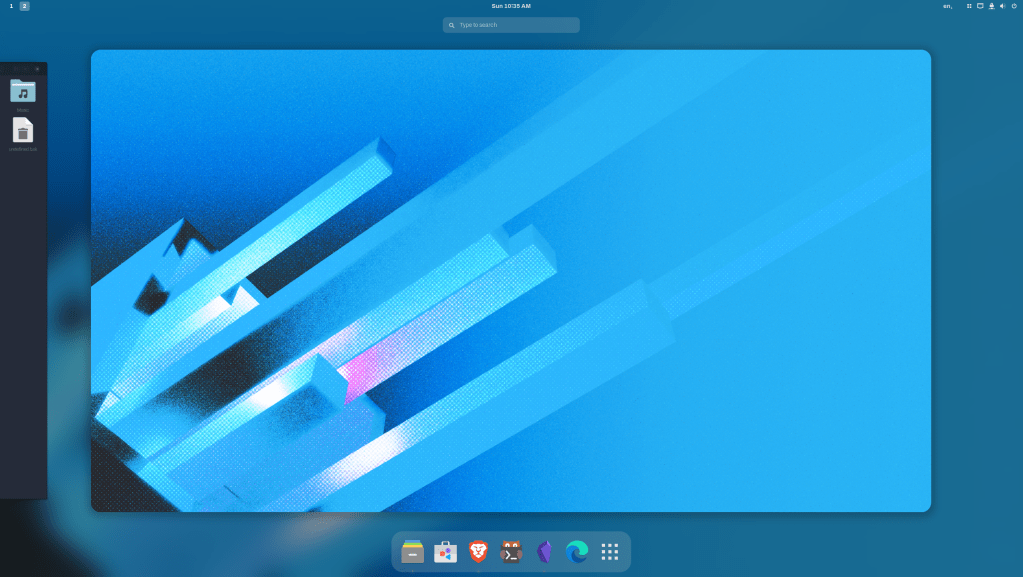
In case you want a bit of that eye candy you would otherwise get by running picom, then Blur my Shell is your best bet. While it can’t blur everything like picom can, Blur my Shell can add blur to your top panel, your app drawer, and other places such as your Dash to Dock should you have it installed.
Various parts of the UI can be customized independently from one another. If you’re like me, you may only want one thing blurred and something else solid. For instance, I like having the app menu and task switching (pictured above) blurred while having a solid top panel. The extension easily accommodates for this specific scenario and vice versa. You can also tweak your preferred degree of blur and other little settings here and there to get your GNOME desktop to look just the way you like.
What About [X Other Feature] I Had on a Window Manager?
I’ll admit that this isn’t a fully-complete or ideal setup for window manager junkies. While I did address things such as keyboard shortcuts, visual flair, and window tiling, I haven’t addressed terminal swallowing, scratchpads, keyboard shortcuts to control the mouse cursor, and other quality features that many window managers can come with.
Regardless, I’m still going to come back and update this post in the future should any of these features find their way to GNOME via extensions or tweaks.
GNOME Can Be GNEAT
GNOME was always a DE I didn’t feel resonated with me when GNOME 2 transitioned into GNOME 3’s new design and paradigm. However, after letting the project mature for years now while getting used to the way I do things on a tiling window manager, GNOME has grown on me considerably. I can actually see myself using it regularly at this point instead of wincing over what features or comforts I’ll have to sacrifice.
How do you feel about GNOME? Love it or hate it? Never used it? Interested in trying it out this way? I’d love to hear what you have to say on this subject.
 Sudo Science
3 responses to “Turning GNOME Into a Tiling Window Manager”
If you go to Settings > Multitasking > Multi-Monitor, you can set side monitors to not be a workspace so that you can keep a reference window open while changing workspaces on the primary monitor
LikeLike
Great stuff, forge and space bar was just what I needed
LikeLike
Hi, I’m using Fedora with the latest GNOME. You need to remap the standard shortcuts for pinned apps in default GNOME keyboard settings (Super + 1,2,3,4, etc.) to make Spaceber extension workspace switching work properly (e.g., Super + 2).
LikeLike