
I’ve used a bullet journal for several years now. I mean, it’s the very first thing I wrote about on this site. Additionally, I’ve been running Linux as a daily driver even longer than that, running only a few distros like Arch and openSUSE without distro hopping.
As a result of running Linux so often, I’ve grown rather accustomed to the terminal. I’ve showcased several CLI apps in the past already, so why am I just now exploring this one only now?
In short, I started to bullet journal a bit less over the past couple of months, although I can chalk this up to a couple of solid reasons:
- I became borderline obsessed with maintaining my Jellyfin server by adding more media to it.
- I had issues finding a better notebook for my needs because I just recently became a fountain pen user. (This also affected a specific post I was writing about notebook choices, as I really had to go back and look at the paper all over again.)
At some point, I wondered what I could do to help myself bullet journal again. After consulting the modern day oracle of Delphi, I hatched the idea to ask about bullet journaling on the command line.
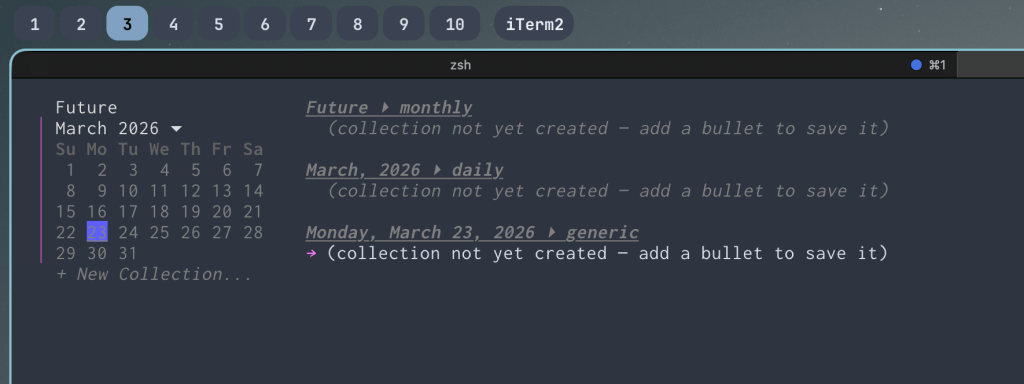
Soon enough, I discovered the existence of this go-based CLI app from n3wscott, so I decided to install it and give it a brief spin. Would I like using this app, or would this be more of a novelty?
The Installation Process

Installing this app, thankfully, wasn’t all that hard in the slightest. My Arch system already had it installed, so all I had to do was run this go command to install it, as instructed on the Github page.
go install tableflip.dev/bujo@latest
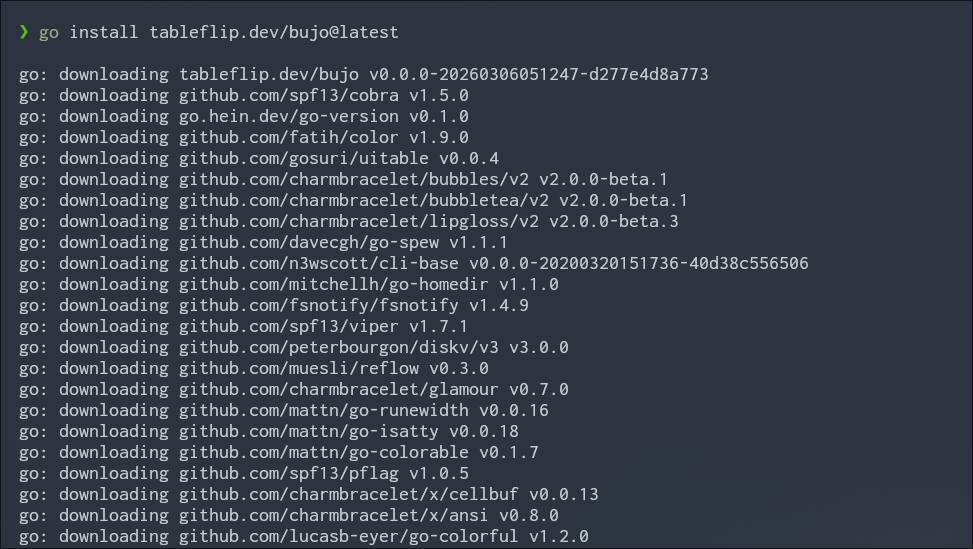
Just for fun, I installed it on my M1 Mac as well, although I had to get go itself from Homebrew first.
Afterward, since I don’t use a whole lot of go apps in general, I had to be sure to export the path to my .zshrc file like so. After a reload of my zsh setup, the bujo command goes live.
echo 'export PATH="$PATH:$HOME/go/bin"' >> ~/.zshrcsource .zshrc
From there, all I needed to do was run bujo commands to get started adding tasks, events, notes, and more to my CLI-based bujo.
How Does It Work?
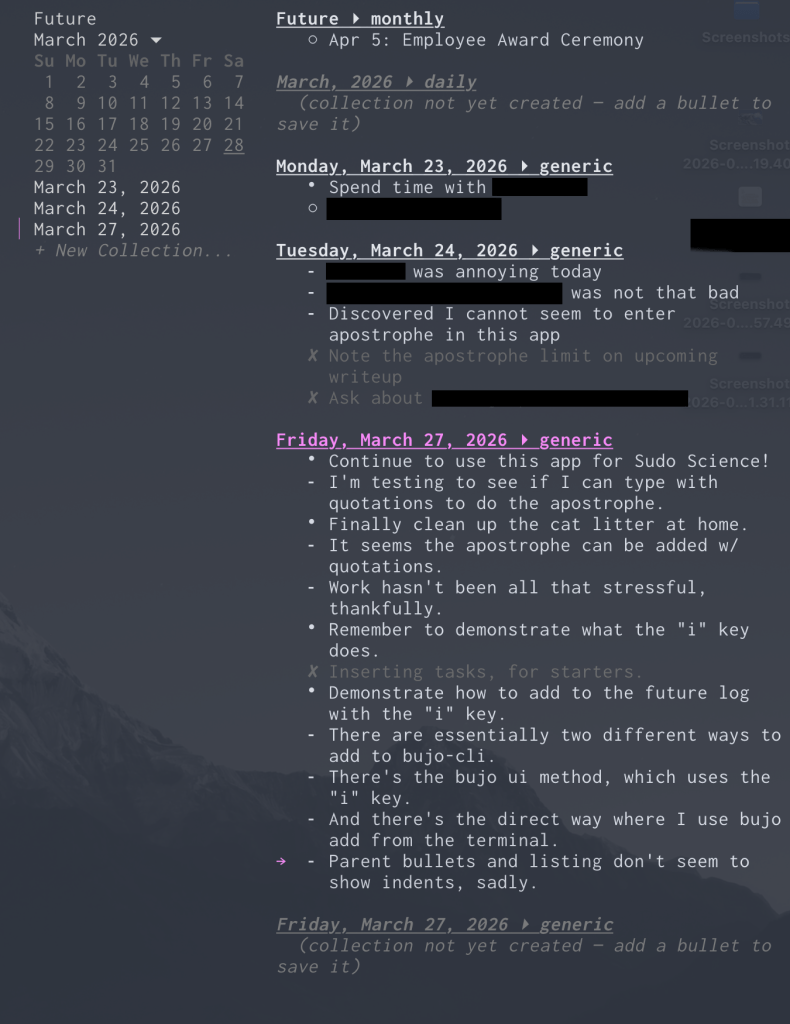
Keep in mind that I mostly tried it from my M1 Mac instead of my Linux system, but the experience was largely the same overall. Furthermore, I didn’t completely explore it after using it lightly for about a week from the workplace.
For starters, the Github page claims that many users prefer to run two terminal windows to use it, one with bujo ui active and the other to instantly add things with commands. However, the bujo ui does a remarkably good job letting me do whatever it is I need to do for the most part, including adding tasks and notes.
To get started with the CLI interface, it’s just a matter of running bujo ui to see the full interface load up in the terminal. From there, the colon summons a handful of commands much like that of Vim, although it doesn’t do everything.
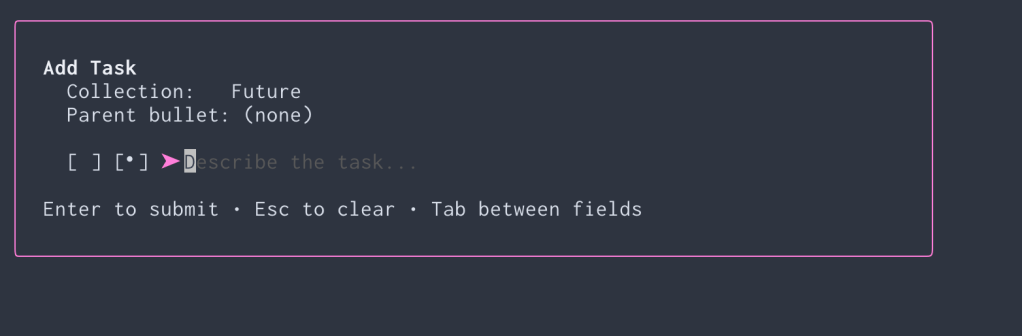
Where the magic happens is where you hit the i key within the UI to add something to your bullet journal. You can cycle through tasks, notes, and events easily, as well as signifiers if you want. Tabbing lets you select the option, and the right and left arrow keys let you select various options. As expected, the usual bullet journal symbols are present with the dot representing a task, the en dash representing a note, the open circle representing an event, it’s all here. The signifiers include the asterisk for priority, the exclamation mark for spontaneous things, and the question mark for things to think about later.
While you can do things from the plain terminal window (and I can see many preferring to do this), I still find the bujo ui gives the least amount of fuss overall.
- Trying to add tasks without quotation marks from the terminal guarantees an error (at least it did with me).
- It’s harder (or at least much less clear) to add nested notes from a terminal window than it is from
bujo ui. - Everything is already in one place versus using a separate terminal to add to your bullet journal CLI.
From the ui, I can also scroll through my collections, including my daily logs, and mark tasks as complete or irrelevant. I can also migrate with no real issues. As I explained with the i key, it’s also easy to add just about anything to the future log or other collections in general. Here, I can also mark tasks complete with the x key or mark anything as irrelevant with Backspace.
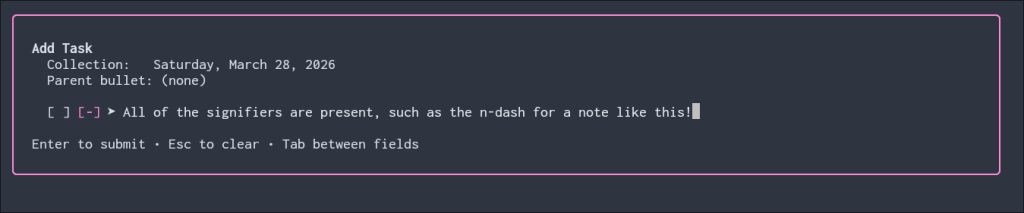
I feel like the terminal commands would work great for me if I gave them a bit more of a chance, but after using it a bit for a few days, I still favor the UI as a whole because things are simpler for me.
Something I feel the app could stand to improve (unless I missed something) is making it simpler to edit or delete items entirely instead of merely marking them as irrelevant. This is especially the case if you happened to mistype or misspell something. The solution to this was to browse to a specific directory to erase the individual item from a collection, which is not ideal in the slightest. Again, maybe I overlooked something in the past four or five days I’ve been demoing the app to see if I’d like it as a possible full replacement for my analog bujo.

Something I don’t think I overlooked has to do with parent bullets. In standard bullet journaling, you can indent tasks, notes, or events underneath something to show that those are related to that parent bullet. It gives an instant visual representation telling you that you might have, say, a master task and a few subtasks beneath it. But here, while I can select a parent bullet, I was unable to actually see an indent, and takes away that clarity that those bullets are related to that one parent bullet. Again, maybe I did something wrong on my end.
There’s Much More To This
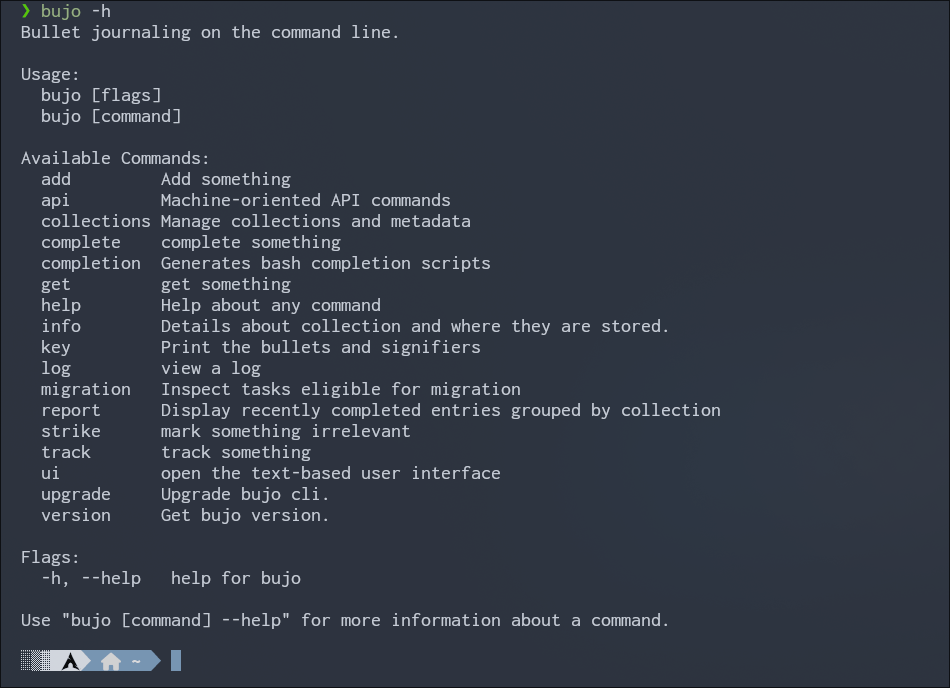
I know I could have used this more between my M1 Mac and my Arch Linux system, although I have been rather busy. That said, while this is great to have as an option for myself, this doesn’t quite scratch the itch I get from working with paper and pen. I still think it’s a respectable choice for someone insistent on working with digital tools only, although after using a Zettelkasten for a while, I feel like the analog aspect of anything has its own merits if given the choice between a digital or analog tool.
I’ve only had the app installed for about a week, that said, but I did like what I saw as a whole, and I do know that there are other bullet journal CLI apps out there. I would recommend this to someone who fits all of the following criteria:
- You have awful handwriting and would much rather type anything instead of feeling like you’re scrawling.
- You already use your computer(s) to do just about everything, and having a CLI app to bullet journal feels like a wonderful bonus.
- You love using terminal applications, and the idea of your bujo being in the terminal feels like a logical application of that.
- You like just the practical, spartan components of the bullet journal as conceived by Ryder Carroll, and you don’t mind not being able to draw Pinterest-worthy layouts that take a lot of time and effort.
- You don’t mind that there’s a bit of a learning curve to using and mastering everything this app has to offer, even anticipating a few rough edges here and there.
Does the idea of using a bullet journal from the CLI appeal to you? Why or why not? Do you prefer the utilitarian parts of a bujo, or do you adore the elaborate spreads and control that are possible in the analog realm? Feel free to leave a comment regarding whatever you preference is. I’d love to hear what you have to say about this.
 Sudo Science