
I already wrote about it recently and in passing, but my openSUSE laptop became a new project for me to tinker over the past week. I loved getting Hyprland to run on the system just as it would run on my Arch desktop. Everything was looking great.
But unfortunately, Hyprland only looked great on this aging ThinkPad X1 Carbon Gen 8 laptop. The system ran mostly the way it does when I use GNOME, with a lot of overhead and graphical effects. The system also got a bit hot if I used it on my lap for too long. It was mostly on-par with how everything ran a few years ago when I almost always used my ThinkPad while docked or plugged in somewhere.
The battery has become a bit worn out, and as much as I don’t like to admit it, Hyprland chews battery life like bubblegum. I already took it upon myself to order a new battery after an initial calibration yielded little significant change, but I wondered if there was more I could still do in the meantime.
Then it hit me: What if I could save battery life with a different window manager? I looked into it and found out that a window manager based on X11 could save me a significant amount of power compared to a Wayland compositor.
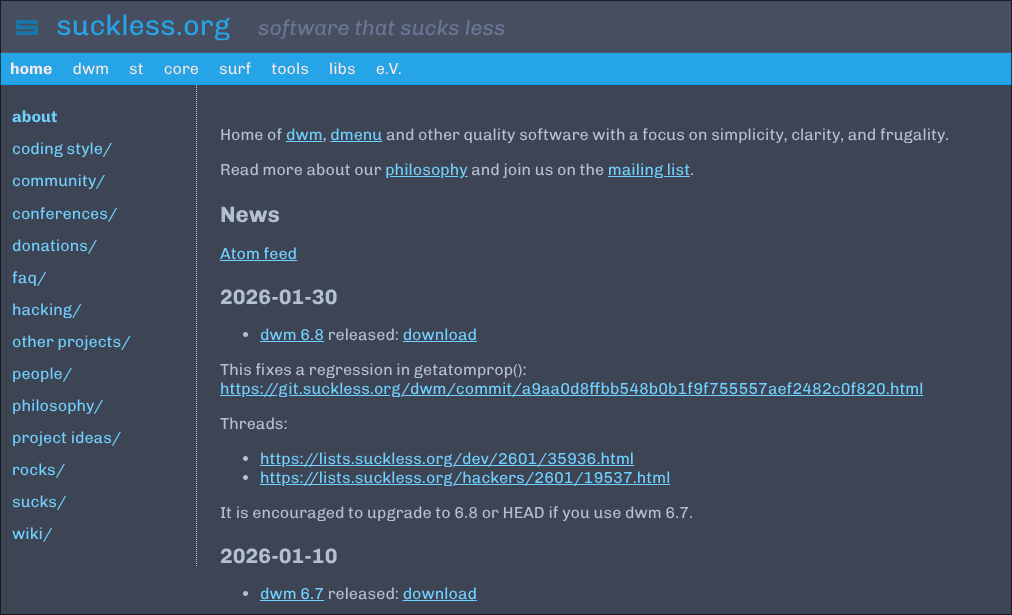
I recalled that Suckless software exists. Essentially, the apps under the “Suckless” umbrella are designed to suck less power and resources. If anything was going to get me better battery life on my openSUSE ThinkPad, it was going to be switching from Hyprland to dwm, the suckless window manager.
I initially attempted to gather a few patches and get things started, but I soon found myself struggling. I can admit that I had never actually used dwm before, so this whole concept of patching features into dwm was foreign to me. On top of that, I started having issues almost right off the bat after trying to use my second patch. I wasn’t sure if I had done something wrong or if I had a version compatibility problem between the patch and my version of dwm itself. Plus, if I put all of this effort into getting everything working, how was I supposed to know if I would actually like using dwm? The idea of putting Herculean effort into setting up my own configuration only to discover that I didn’t really like it made the whole thing daunting.
I almost went back to using Awesome WM, but I couldn’t find my dot files. Besides, something about simply using Awesome again, as great of a window manager as it is, felt like a form of defeat. It was almost as if I admitted to myself in some way that dwm was too “hard” for me to use.
Then, almost like destiny, that’s when I stumbled across this video by Mental Outlaw.
I hadn’t heard of Siduck’s chadwm before, but essentially, it’s a fork of dwm with sane defaults already applied. It looked like a great way to save time trying out dwm, and Kenny’s video tour made it look more appealing as he explored it.
I was already visiting the Github page by the end of the video. This was my chance to check out dwm in a more digestible way, see if I liked it, and decide if I wanted to keep using it on my openSUSE laptop.
First Impressions
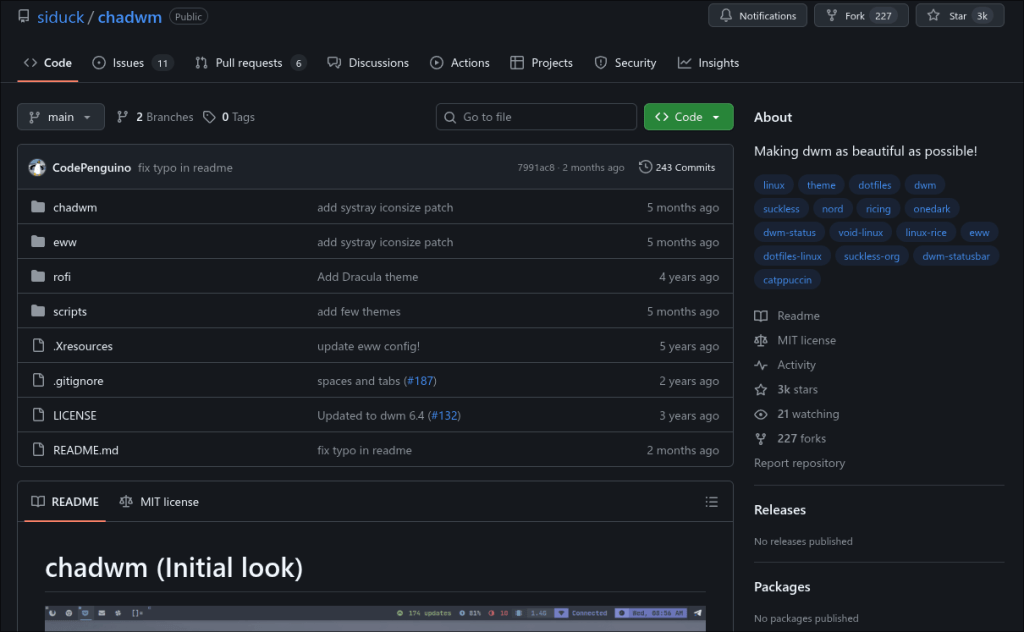
I had serious issues trying to get chadwm to run at first. Despite how I followed the instructions on the Github page, it was mostly because I use GDM by default (I installed the GNOME version of openSUSE years ago, so GDM has been grandfathered into my system). GDM launches GNOME and Hyprland with no issues, but unfortunately, I had a slew of issues trying to get GDM to actually see chadwm and launch it properly. In short, I had persistent issues and hours of troubleshooting. The result was either:
- chadwm showed up and launched, but an xterm window would pop up in the lower-right corner. (Running the included
run.shfrom here would actually execute chadwm, but it was hardly an elegant solution, as it would take up a whole workspace.) - Trying to start the chadwm session would lead to a completely black screen.
- OR chadwm would simply never appear on my session list at all.
I only write this here not to bash chadwm or anything, but to point out that I wasted a lot of time (a good five hours on my day off from work) and to hopefully caution others not to do the same. I largely chalk this up to half PEBKAC and half of openSUSE being “not like the other distros.” I still believe that setting this up on my Arch desktop would be a breeze in comparison.
In the end, I decided to stop bothering with the session entry and now start chadwm on boot each time by powering on, getting to GDM, hitting Ctrl + Alt + F3, and typing startx to boot into chadwm. Not the most ideal, but hey, everything works perfectly now.
One might wonder why I didn’t simply change GDM to a different display manager, but aside from how openSUSE’s quirky nature shows even there, I couldn’t guarantee if the likes of lightdm or SDDM would be able to launch GNOME or Hyprland. While I don’t like that Hyprland seems to suck tons of power on this laptop, I still have it here in case I’m primarily using the laptop on a desk with the power plugged in.
Actual Use and Overall Setup
The sane defaults are quite nice, although I had to do at least a little configuring for basic things like my bindings. This gave me an opportunity to learn about how configuring chadwm (and by extension, dwm) works.
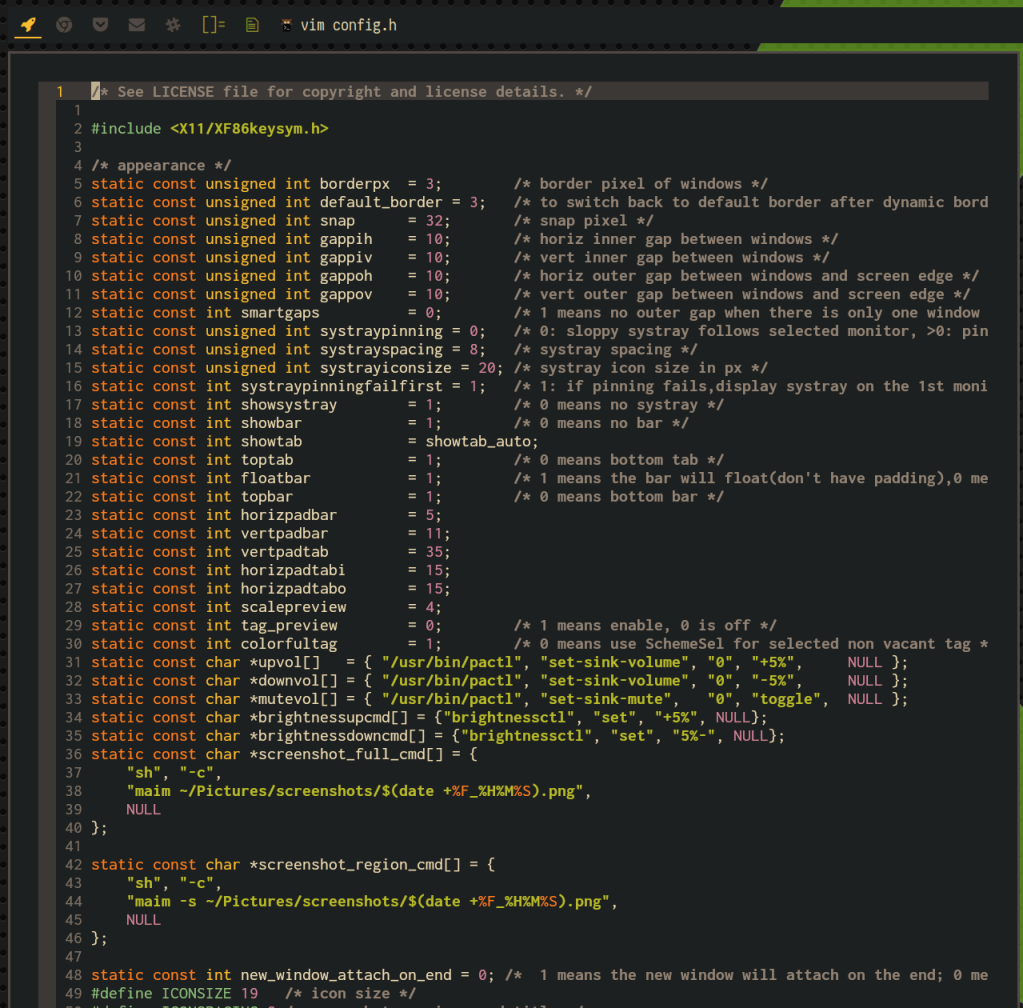
In short, to configure bindings or other major settings in chadwm, I had to:
- Open the config.d file
- Make my changes
- Save the changes
- Enter
sudo make installin the chadwm/chadwm directory - Restart x by hitting the
Super + Shift + Rshortcut
From there, it was only a matter of setting up brave-browser to launch with my preferred binding, and then for betterlockscreen to activate on another, and so on. I set up my default terminal to launch with Super + Shift + Enter to match consistency with my Hyprland setup on Arch, delegating Super + Enter to launch my file browser. I then took the time to change the default terminal from st to Kitty, as I already have Kitty set up just the way I like, and I didn’t think it was worth the effort to use st.
If I make a mistake setting anything up, the terminal will gladly let me know. In that case, all I need to do is fix the typo or syntax error in the config and try again.
From the config file, I was able to change the theme. Thankfully, chadwm comes with a few common color schemes ready to go. All you need to do is change the path in the config file and follow the aforementioned steps to see the changes. If you do this for yourself, don’t forget to edit the bar.sh file under the scripts folder to match the theme you selected, or your bar won’t look quite right.
My openSUSE system is generally running everything Gruvbox while I have Nord everything on my Arch system, so while chadwm comes with Nord options already, there wasn’t a “true” Gruvbox. Instead, you’ll find a Gruvbox-inspired Material theme called “Gruvchad.” While it looked good enough, I decided that wasn’t enough and went out of my way to make something more in-line with my overall Gruvbox setup.
I know the chadwm setup comes with “eww” installed out of the box, but I don’t really find this sort of widget all that compelling, so I left it disabled despite the fact that I do have it installed from a few years ago. This is a part of the config I generally ignore and don’t bother with. Aside from that, the included widget comes with Artix Linux theming, for what it’s worth. As a result, I didn’t bother to customize this widget that came included with the setup.
#!/bin/shdmenu_run \ -nb "#1d2021" \ -nf "#ebdbb2" \ -sb "#98971a" \ -sf "#1d2021" \ -fn "Iosevka-12"# I use this script to instantly theme# dmenu on launch now. I saved it as# "dmenu-gruvbox" and added it to my# .local/bin directory.
Speaking of things that it comes bundled with, chadwm has a rofi setup included as well. Unfortunately for my case, I can’t really test it and see what it looks like, as I already use a Wayland-compatible fork of rofi on my systems. Instead, I got around this by installing dmenu and running it with a few cosmetic tweaks (see above) to make it more consistent with the Gruvbox setup I’m going for. Despite that, everything looks much nicer and uniform now.
I Could Get Used To This
Now, don’t get me wrong. I still love using Hyprland, I still have it installed as one of multiple session options on my openSUSE ThinkPad (much like how I have Cinnamon installed on my Arch system), and I still prefer to use Hyprland on my Arch desktop.
Despite that, chadwm (and dwm by extension) is starting to grow on me. The relative ease of setup let me get my feet wet with dwm without having to sacrifice too much time off the bat for what I may or may not have found worth the effort, and I can say that I am impressed with chadwm and what it does.

The best part? Battery life, by far, hands down, no contest. After roughly calculating it between Hyprland and chadwm, my battery life is drastically improved. In real-world use today, I got 3 and a half hours of continuous use. That may not sound impressive, but keep in mind that this battery is at the point where it definitely needs to be replaced. With Hyprland running on the same screen brightness and overall use, it felt like I was lucky to get an hour and a half of continuous use. But now? chadwm came to the rescue and made this hardware feel almost like new again.
That also reminds me of another pleasant surprise. After using chadwm for several hours for regular computing tasks and writing earlier from my living room, I noticed the laptop ran far, far cooler. It ran cool enough to the point that I could use the laptop for its namesake, resting on my lap, without worrying about heat. Meanwhile, running Hyprland or even GNOME makes the hardware veer toward the toasty side, meaning I’ll have to have it resting on a surface like the coffee table, which isn’t always ideal if I have to crane forward from the sofa to type on it.
Overall
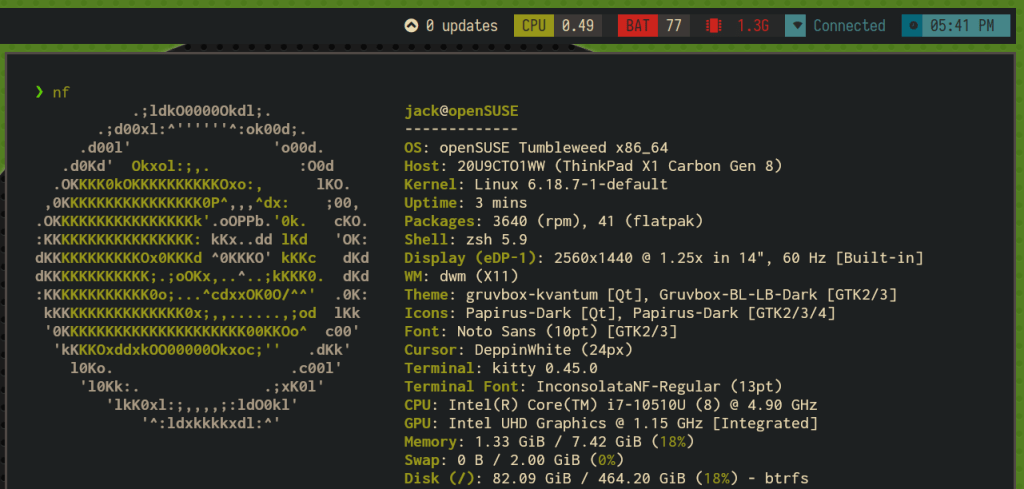
My openSUSE system feels much more useful with chadwm running on it thanks to its light footprint. I would go as far as recommending chadwm wholeheartedly for the following two use cases:
- You already use a different wm but want to give dwm a try without experimenting with the patching system just yet.
- You have an aging Linux laptop and want to get more battery life and overall usability from it.
Still, those don’t have to be the reason somebody uses it or not! If I made it sound compelling (or the Mental Outlaw video showcasing the features intrigued you), feel free to check out the project on Github. Aside from this, maybe one day in the future, I’ll be more confident about how to patch dwm from scratch and get everything tailored just for me.
Do you use dwm, chadwm, or a different window manager entirely? Or are you still using a desktop environment instead? What distro or overall setup are you running? (Fun Note: Doing all of these things on openSUSE always feels like an adventure compared to running a different distro.) Feel free to leave any other comments or questions on this below. I’d love to know what you think.
 Sudo Science