

I’m still largely thriving on my openSUSE 30-day challenge (with my conclusion coming soon). I even got another few apps installed because I was interested in trying them out for an upcoming project that promises to be exciting, and I promise to post about that should it materialize into something more tangible.
Still, one of the apps I knew I had to reinstall was Obsidian, the second brain app that I’ve used a lot less frequently over the past year. That’s not to say it isn’t useful or anything, although I feel like I’ve delegated much more to analog over the past year as opposed to using my newly-cleaned up second brain.
But upon stumbling into a video on something regarding Obsidian, I discovered page properties and found myself tinkering around with the app a bit more again for purposes other than simply drafting these posts. In fact, I found an old note detailing my old Vim-like shortcuts!
I learned many of the shortcuts while I was watching a video demonstrating them a good while back, but imagine how stunned I am to find there were several I hadn’t used in a while. Additionally, imagine how thrilled I was to find more I had been to see additional shortcuts I didn’t even know existed!
What a Great Piece of Software
Whether it’s just in Obsidian, my current Neovim-based LunarVim setup, or even the tried and true Vim itself, the shortcuts are always incredible and I finally feel like I understand why Linux users in particular have such a fondness for them. I’m aware that Vim is OS-agnostic, but it feels like Vim is much more appealing when you’re running a regular terminal interface and getting things done.
Of course, I also have to commend Obsidian’s development team for integrating the shortcuts into the app itself while doing such a phenomenal job at it. Each time I look up a command I was unfamiliar with and give it a shot in the app, I’m astonished at the result when it works perfectly.
What Shortcuts Have I Used?
I can start by discussing the reference table I had created for myself in my old second brain (and I moved it to my new one because it was that good).
| Keyboard Shortcut | Function |
|---|---|
| :# | Jump to # number in document |
| . | Repeat previous command |
| { | Jump back a paragraph |
| } | Jump forward a paragraph |
| $ | Jump straight to the end of a line |
| 0 | Jump to the very start of a line |
| a | Append after the cursor |
| A | Append at the end of a line |
| b | Jump backward to the first character of a word |
| cc | Replace an entire selected line |
| dd | Delete a whole selected line |
| e | Jump to last character of next word |
| G | Go to bottom of document |
| gg | Go to top of document |
| gU (selected text) | Convert all selected text to UPPERCASE |
| gu (selected text) | Convert all selected text to lowercase |
| H | Go to top of screen |
| I (shift + i) | Edit mode for start of a line |
| L | Go to bottom of screen |
| M | Go to middle of screen |
| O | Insert a new line above the current line |
| o | Insert a new line below the current line |
| p | Paste copied text |
| r | (On selected letter and added keystroke) Replace letter |
| s | Deletes character or selected text AFTERWARD and enters edit mode |
| u | Undo previous action |
| v | Start selecting text (use arrow keys to highlight more) |
| v + down arrow | Select all text below |
| v + up arrow | Select all text above |
| w | Jump to first character of next word |
| y | Yank (copy) selected text |
Out of all of these commands, I would have to say that I use A, G, and gg the most. Before I had stopped using my second brain, I would use my curly brackets ({}) almost constantly. I also tend to forget that I can use $ to advance to the end of a line. Aside from that, some of the more granular commands built into Vim prove just how useful the app can be in so many situations.
For instance, one can use b to jump backward to the start of words, the letter w to jump to the first letter of the next word, or the e to jump to the last letter of words. No doubt a few readers are laughing at how long it took me to discover the sheer utility of just a few commands, but finding out which ones I can use in Obsidian as of late makes me light up a bit, especially as I stumbled into the idea for my upcoming project. (I know I’m being vague about this, but I am excited about it and hope to have it running little by little this weekend.)
Another one of the shortcuts I’ve been excited about is diw, which I discovered deletes the entire selected current word regardless of where the cursor is within the selected word. I used to use O a lot to add a new line above a selected line, but now I’m just barely discovering how fun it is to use the lowercase o to add one below while also going straight into text input.
Going back to the aforementioned curly brackets, I discovered I could jump between sections instead of paragraphs by using the square brackets to varying effects while using parentheses to jump to other sentences.
Shortcuts I Don’t Use
This is going to seem a bit weird for a lot of people, but there is one set of shortcuts I don’t use on Vim at all. Ever. Once I explain why, however, it should make a lot more sense.
I never use hjkl on my keyboard to navigate around.
If I feel the need to do so, I’ll just move my hand back and reach for the arrow keys every single time. The reason behind this is simple: I am not a QWERTY user, and the hjkl set of shortcuts was created primarily for QWERTY users to navigate around using only their right hand.
Sure, Colemak remaps the keys out where they are still reachable from the right hand, but the setup is less than ideal at best.
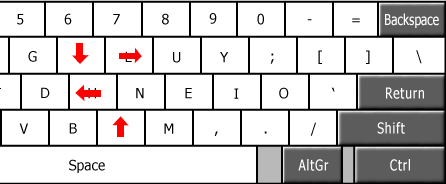
I find this one strange because I know this is usually the keyboard shortcut that everybody loves to use when it comes to Vim keybindings, but it’s also the only one I can think of that seems largely decided based on where the keys are in relation to one another. Most of the keyboard shortcuts seem to be decided by something based on what letter the word starts with (r for replace, y for yank, p for paste, u for undo, etc.) and some seem rather subtle with meaning (H, M and L for the top, middle, and bottom of the screen, as in High, Middle, and Low) while some commands seem a little arbitrary in general (G for the bottom of a document and gg for going to the top, $ for going to the end of a line, etc.).
But as far as I’ve noticed, hjkl are placed by one another on purpose for easy navigation while ideally allowing QWERTY users to not take their hands off the keyboard, so having them fragmented in such a way feels like a shame. I’m sure there are ways to remap the keys, but that would require remapping everything else (a very real struggle for we few Colemak users running most PC games only to realize we can only walk forward and left normally without extra configuration), and I’m alright with all of the rest of the shortcuts I’ve mentioned. In fact, I feel this is a bigger issue overall for QWERTY users already used to Vim shortcuts switching to alternate layouts.
This isn’t really Vim’s fault or anything, and this is the only real shortcut combo I get little use from, but I know this set of shortcuts has such a die-hard following.
Where Else Have I Seen Vim Shortcuts?

More places than I would have expected, really! Aside from the aforementioned Obsidian or obvious Vimium or Vimium C browser extensions, the latter of which seek to add Vim shortcuts to your existing browser, there’s also the minimal and Vim-driven qutebrowser. Even if you’re not too crazy about the idea of such a minimal browser, qutebrowser is worth giving a try at least once or twice. There’s also spotify-player, which honors a few Vim shortcuts such as G to go to the bottom of a playlist.
Additionally, the terminal-based Yazi file explorer uses some Vim shortcuts rather effectively. I love being able to select, move, or delete so many files with a few simple keystrokes using Yazi’s implementation of Vim shortcuts rather than using a graphical file manager to do the equivalent task. I suppose Ranger does the same thing, but I never really liked Ranger that much, and Yazi really gels with me a lot better.
I know this is a far-from-inclusive list of apps that support Vim or Vim-like shortcuts, although I’ll likely update again in the future when I discover more apps that fit this criteria.
How Can I Learn These?
The best way to learn the shortcuts, just like learning almost anything, is to practice. If you have vanilla Vim installed, you can get started learning so many of these shortcuts and truly internalizing them with an interactive tutorial. All you need to do is open your terminal and type vimtutor to get started. While you are encouraged to make a copy of the document, it’s not necessary and you can still get up and running right away. I know it’s even a meme at this point, but you’ll learn how to exit Vim quite early on in the tutorial (it’s not difficult).
Another thing I’d recommend is using the commands that make the most sense for you in as many programs as you can, especially if you happen to use quite a few apps that have Vim or Vim-like shortcuts. For instance, after discovering I could use shortcuts in Obsidian, I started to find myself wanting to use the shortcuts that much more compared to before when I had little reason to ever do so. I have a handful of shortcuts that make all the sense in the world within Obsidian especially, so I find myself navigating paragraphs or to the end of lines quite easily as a result. Consequently (and predictably), I can open up Vim at just about any time later and use the exact same commands!
The whole idea behind this is simple: If you practice something, you get better at it.
What Do You Think?
Do you like Vim commands? If so, how often do you use them? Which commands do you find most useful? Or do you not use Vim at all? Maybe you find it overrated? Whatever the case, I’d love to know what you think.
 Sudo Science
3 responses to “Learning to Love Vim Shortcuts”
[…] admit that it initially took me a while to really “get” Vim commands, to really appreciate them. That eventually changed, and I still use them in Obsidian to this day. […]
LikeLike
[…] for storing the handful of templates I actually do use in Obsidian as well as my reference list of Vim-like shortcuts. I also took the liberty of adding a 000 Inbox folder for anything I need to note quickly, which I […]
LikeLike
[…] an overwhelming number of plugins for my purposes is akin to swatting a fly with a shotgun blast. I’ve already taken quite a liking to Vim-like keybinds, and I know that’s a hurdle for a lot of new users. Maybe in due time, I’ll be able to […]
LikeLike