

I’ve been rather busy as of late with NaNoWriMo, and I’m happy to report I’ve been writing daily consistently. I’ve left my other growth-related goals on hold since October, but I feel it’s well worth the trouble, as I’ve made quite a bit of progress on the novel I’ve been drafting.
Still, I wanted to write about something I stumbled across several days ago that really got me excited, and I’ve been wanting to share it since I discovered it. I’m talking specifically about Upscayl, an AI-powered program that easily upscales images from grainy or lower-res ones.
Why Does This Program Matter?
“…since Upscayl was built first for Linux users, it means we can find it on any major repository.”
I normally wouldn’t be all that excited over such a program, but I was trying to customize my system (I’ve been using GNOME with a tiling window extension as of late, by the way). Moreover, I stumbled across my long-running wallpapers folder and realized I’ve had a few of the wallpapers since 2009. As my displays are primarily 1440p nowadays, these old wallpapers are typically well-below 1080p (some at 4:3 aspect ratio as well), which makes them look horrible when stretched out on such a high resolution.
It didn’t mean much to me at first either, but when I stumbled across my old favorite Windows XP wallpaper, Crystal, it seemed as if finding a way to upscale it would have really been beneficial. I wanted to relieve some nostalgia with this Windows XP classic wallpaper, but stretching out a grainy image from 20 years ago was not the best way.

Still, it wasn’t enough for me to recall how nice some of my old wallpapers used to be; I wanted to actively use my old wallpapers again. What would it be like if Crystal from Windows XP were not only usable, but sharper-looking to boot?
Enter Upscayl
Fortunately, when I wasn’t thinking so hard about this, I decided to browse AlternativeTo one random day. It seemed a solution came to me only when I wasn’t actively looking for one! It was then that I discovered Upscayl.
Best of all, since Upscayl was built first for Linux users, it means we can find it on any major repository. That includes:
- Apt for Ubuntu/Debian systems
- AUR for Arch users
- RPM file for Fedora users
- AppImage
- Flatpak
- Snap
- ZIP File
In other words, the Upscayl team was very thoughtful and wanted to make sure as many Linux users as possible were able to use the program. That’s already a great reason to check out the app! Of course, if you’re not running a Linux distro, the program is readily available on Windows and macOS as well, and there is a cloud version in the works, although that’s still limited to just signups on a wait list to get access to the beta.
But Is It Any Good?
I’ll gladly let the evidence speak for itself.

“I’ve been largely impressed with the performance of the program thus far, especially considering it’s 100% free.”
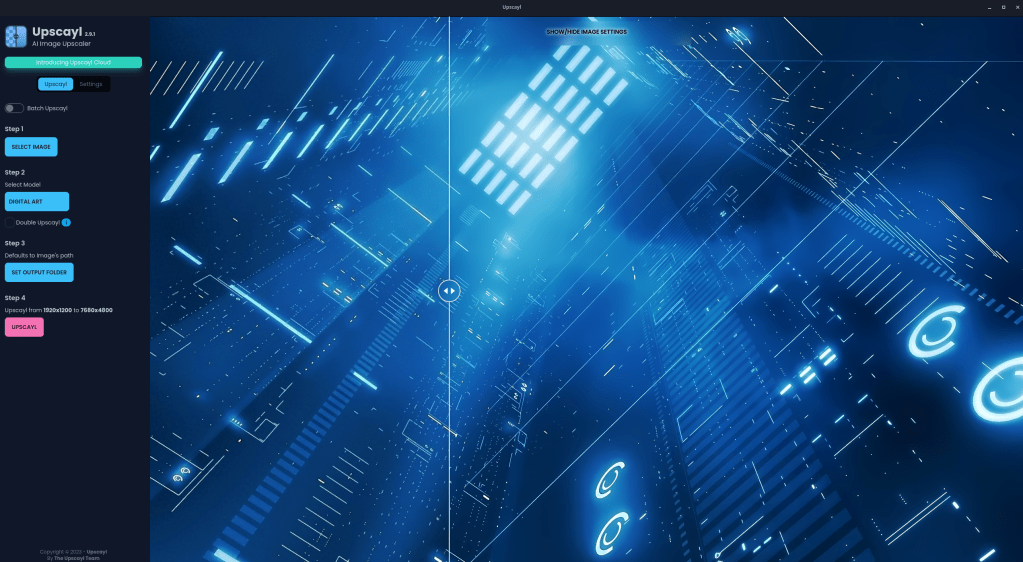
Crystal is not the only image I’ve attempted to convert, by the way. I’ve tried several of my older wallpapers and seen great results. Granted, the second step on the program, Select Model, really will determine how great your results could turn out. Of course, which model you should use will largely vary by what the original image is. Most of my images look great with “General Photo (Fast Real + Esgran)” and “Digital Art” models selected.

I’ve been largely impressed with the performance of the program thus far, especially considering it’s 100% free. The only hiccup I’ve encountered when converting the images will largely depend on what image I want to upscale. If it’s an abstract image, I’ve largely had great luck with the “Digital Art” model selected on step 2, but anything that looks like a photograph will likely benefit from Remacri or some other setting.
Sounds Good. How Do I Use It?
Thankfully, the app is dead simple to use. Just follow the instructions on the left pane, which consist of the following:
- Select the image you’d like to upscale.
- Select the model you’d like to use to upscale the selected image.
- Select where you would like to save the newly-upscaled image.
- Click the “Upscayl” button and watch the program work its magic.
Step 2 is going to be where you use the most trial and error, but that’s really not saying much, especially if you have a strong enough GPU to handle the program. Worst case scenario, an image you convert will only look slightly better at best, but that’s not much of an issue. Simply select another model and try again to see how much better you can get your image to look.

How Does It Compare to Other Apps?
“I’ve largely had comparable (if not, better) results with the free, open-source Upscayl than I have with the expensive Topaz Photo AI.”
I recently bought some software on a Black Friday sale, including some AI-tools from Topaz Labs. I mostly got the bundle for the video upscaling and experimentation here and there, but since I got a bundle of Topaz’s other programs, I thought it would be neat to compare Upscayl with the Topaz Photo AI program.
What’s a bit shocking is how when it comes to converting images, I’ve largely had comparable (if not, better) results with the free, open-source Upscayl than I have with the expensive Topaz Photo AI. If anybody is interested in the future, I could always do a comparison of the two programs, even if I have to take one for the team and be booted into Windows longer than I like.
Roadbumps I Had
As the Upscayl website says: You need some sort of GPU to use this program effectively. I’ve noticed the overall speed difference between the slower Intel GPU built into my Fedora laptop compared to the much faster, dedicated GPU I installed on my Arch desktop. For the ThinkPad, I have to wait around 30 seconds to a minute for an image to upscale. On my desktop with my AMD GPU, however, I wait mere seconds at most.
Additionally, and this is why I took a good while to finish writing this post up: At some point on my Arch system, the program just stopped working. Clicking the button to “Select Image” stopped bringing up any dialog box whatsoever. Dragging and dropping an image into the program wouldn’t load a preview, either, and I got an error when trying to convert anyway. I wasn’t sure what caused it, but I tested my Fedora laptop and had no issues.
I’m still not sure what caused it to break, but my workaround at the moment is switching to the AppImage. I’m not sure why it stopped working in the first place considering I was running the Flatpak. I’ll update on this again in the future in case something else breaks or the Flatpak works again.
Conclusion
You aren’t limited only to using Upscayl for wallpapers. It just so happens this was what I wanted to use it for more than anything else. Rather, you could use it on wallpapers and so much more. Did you have any images from one or two decades ago that could stand to look sharper? Give them a spin on Upscayl. You might be surprised. Feel free to share how the results turned out as well!
 Sudo Science
2 responses to “Using AI To Revive Your Old Wallpapers”
[…] programs that are not XP-compatible are present on the desktop. In case anyone is curious, I simply upscaled the classic Crystal wallpaper (I’ve always like it more than Bliss) included with Windows XP for a 1440p display while […]
LikeLike
[…] started affecting most of my other Flatpak images as well. Little apps here and there such as Upscayl stopped opening altogether as Flatpaks, but the AppImage worked […]
LikeLike