
Protoweb is Neat!
I saw an interesting video recently from tech YouTuber MJD regarding something called Protoweb, which promises to let users browse what feels like “old school” internet websites. You can check it out briefly in this video:
In short, Protoweb is a community-run project by enthusiastic volunteers who use available resources on Archive.org’s Wayback Machine to not only restore searchable and browseable sites, but also fix pages that normally have borked images when you normally try to visit them on the Wayback Machine itself.
I was sold on it well before the video finished, as I do remember the old days of browsing the web 20 years ago and the subsequent nostalgia. Granted, there are aspects I would much rather leave in the past such as the simulated 56k modem speeds (I will never miss dial-up connections), but there is the sane option of using a simulated T1 speed to load pages.
Regardless, I was itching to get started and try this out! The only problem?
The Documentation Accounts Mostly for Windows
While it is cool to look at the list of supported browsers by platform and see BeOS getting some love, I noticed a distinct lack of Linux on the list. I don’t even see classic distros that would have been era-appropriate or anything; Linux is completely absent from the list.
In short, the “Quick Start Guide” on Protoweb’s instructions under step 2 focuses primarily on Windows 3.x, Windows 9X, Windows 2000/XP, and Windows 7-11 with a minor shoutout to Classic Macintosh. To further emphasize how Windows is emphasized, the developers made a customized “Protoweb Browser” for modern Windows platforms, which is designed to browse Protoweb right out of the box, no additional configuration necessary. Granted, I get that developing a browser like this for older platforms seems difficult, but I didn’t see anything about Linux whatsoever.
Instead of sitting back and complaining, however, I decided to make a short tutorial on how I got Protoweb working on Linux from a couple of relatively modern browsers that have a classic feel to them (for added realism).
Selecting a Browser
First, you’ll need to pick a browser. Keep in mind that I don’t recommend doing this on your main browser, as the setup requires using a proxy server and that you won’t be able to browse modern websites as long as everything is set up. Instead of having to undo your changes when you want to return to the modern web, why not keep it on a separate browser dedicated for the task?
Originally, I was going to pick SeaMonkey, which I actually did use way back in the day in 2005. This classic browser is connected to Netscape, so the aesthetics would be perfect for using Protoweb. Even in 2005, I did find SeaMonkey’s UI antiquated compared to then-recent releases of Mozilla Firefox, so the old school look is appropriate when browsing any ancient-looking pages.
Unfortunately, I would have had to uninstall a version of Rust I was using to install SeaMonkey from the AUR, but on the bright side, I did verify that I could install the browser just fine on Fedora. On my Arch system, however, I went with Pale Moon, a browser that once started as a fork of a much older version of Firefox before becoming its own unique beast. Just like SeaMonkey, Pale Moon has a UI that feels dated to a specific period of time. I recommend using SeaMonkey if you want that unmistakably vintage 90s feel that reminds you of Netscape, whereas I recommend Pale Moon if you want an early to mid-2000s experience reminiscent of Firefox 3.
There are other browsers I could have tried, but I just went with the first two choices I could think of that screamed “old school” to me. I guess if you want an honorable mention, Konqueror could be a solid option to consider as well. However, I don’t feel like installing Konqueror, so anybody who wants to give that a shot can be my guest.
Just like MJD mentions in the video, there’s always the small chance that the instructions could change in some way from when I first write this post. To account for that, I’m going to link directly to the Protoweb servers page in case the port numbers or proxy addresses are changed at some point in the future. If things do change, I’ll do my best to update this blog post as well.
Access Protoweb From SeaMonkey
Assuming you’ve installed SeaMonkey on your distro successfully, look at the toolbar on top. Now click Edit > Preferences > Advanced > Proxies > Manual proxy configuration and click on the Advanced… button.
Once the window below opens, fill in the HTTP Proxy and FTP Proxy boxes like so. Keep in mind the port number 7851 (as of the time I write this) is to simulate a T1 connection speed.

I initially unchecked the “Use HTTP Proxy…” box, but after a successful connection, I came back into the settings and saw that the SSL Proxy still filled itself in the same way as HTTP and FTP Proxy both did (the instructions on the Protoweb documentation said nothing about filling in SSL Proxy). Hence, I don’t know if checking it or not really matters, as it did still work on my end.
If you really insist on simulating the slow loading speeds of a 56k modem for whatever reason (authenticity?), you can change the port number to 7856.
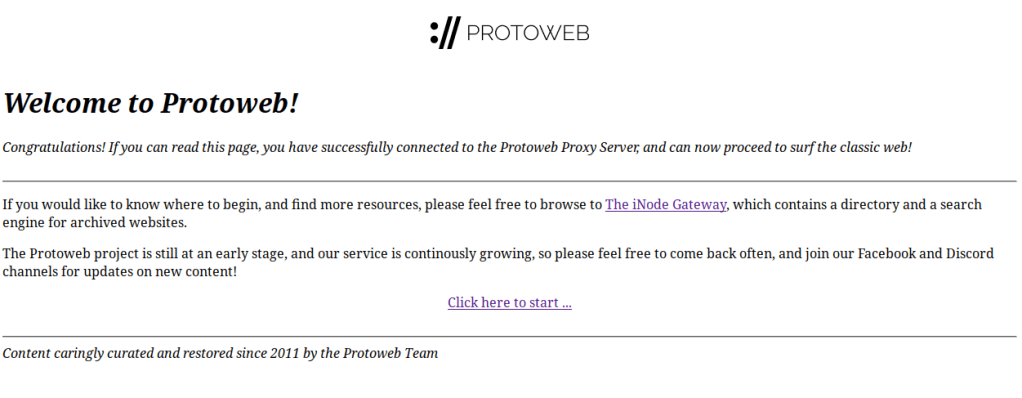
Hit OK to save changes. Upon doing so, you can head over to welcome.inode.com to test if it’s working. If it is, congrats! You’re ready to browse Protoweb like you’re on the internet 20 years ago.
Access Protoweb From Pale Moon
If you’re opting for Pale Moon, instructions are largely similar.
Assuming you’ve installed and opened Pale Moon, click Tools on your menu bar and go to Preferences > Advanced > Network tab > Connection > Settings… button. You should now see a window that needs to be filled in like so:
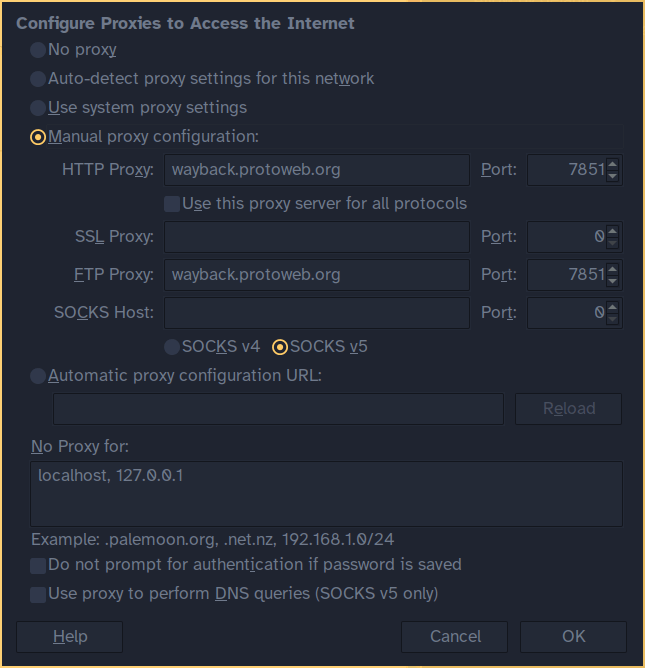
Just like before, if you really insist on simulating the slow 56k speeds for the authentic 90s experience, change the port numbers to 7856 and be my guest.
Once you set everything, click OK to save changes and close the window. Just like you can with SeaMonkey, try visiting welcome.inode.com to test if it’s working. If it is, congrats! You’re ready to browse Protoweb from Pale Moon.
What’s It Like?

Honestly, it’s pretty neat, and I do admire the dedication of the users backing this whole project. Unfortunately for me, I was unable to find a few message boards I remembered last reading over two decades ago, but I understand that’s largely a limitation from the Wayback Machine only having so many cached pages to work with. Still, I was able to look at a few then-popular sites just the way they looked in the late 1990s, complete with awkward bitmaps and simple hyperlinks.
As MJD shows off in his video, you can also use Protoweb to play Runescape just as it was circa 20-something years ago. I didn’t play Runescape back in the day and still haven’t, but growing up, I did know a handful of kids who did when I attended high school. This may prove quite interesting and nostalgic for anyone with a personal connection to the game.
Have you tried Protoweb yet? If so, how did you like it? What sites from eons ago did you want to revisit again?
 Sudo Science