
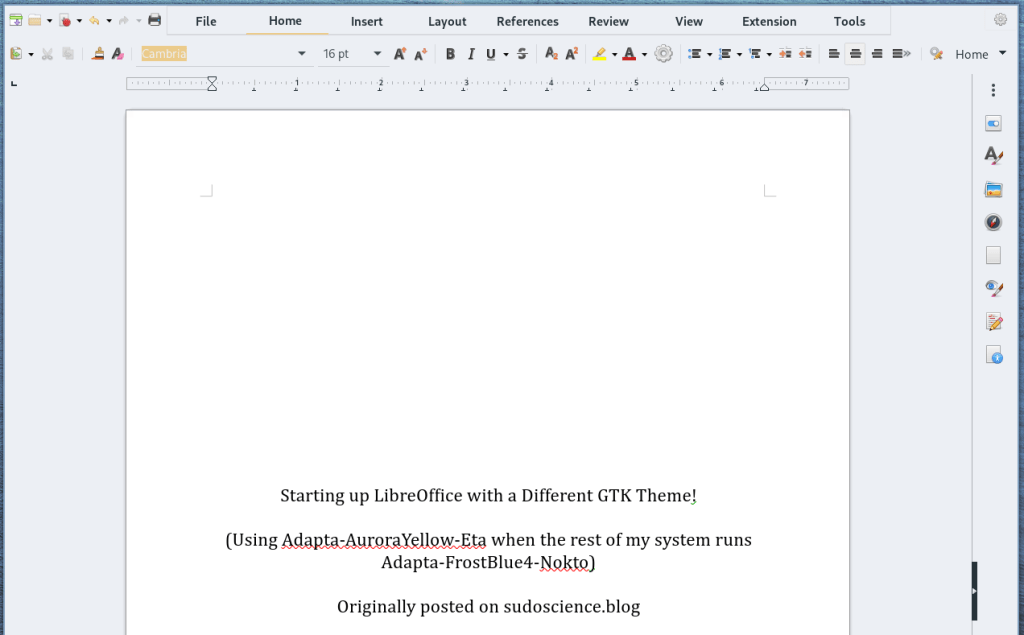
I, like many other Linux users, like using LibreOffice. The free, open-source Microsoft Office alternative hardly needs an introduction, and I personally like to use LibreOffice Calc frequently, especially during the summer.
Like many more Linux users, I also like using a dark theme on my system. I like having my file explorer (I’m using Thunar as of late), web browser, terminal, and more apps running dark theme.
BUT unlike many Linux users in both camps, I prefer my LibreOffice apps to run in light mode. Might seem strange, I know, but something about having a light UI on a word processor or spreadsheet just feels more right to me. I know I can’t be the only person who feels this way either.
What do I do if I want to keep a dark UI everywhere else and have a light theme on just LibreOffice? I’ll be delving into how to change the GTK theme independently in LibreOffice from the rest of the system in two different ways: a standard LibreOffice install and LibreOffice Flatpak.
Change GTK Theme on Standard LibreOffice
Follow these instructions if you installed LibreOffice from your standard package manager on your Linux system. Keep in mind I tried this on both Arch and Fedora with success. Although I haven’t tested this with any Debian or Ubuntu-based systems, I imagine it’s more than likely the same process.
If this is the first time you’ve tried this, I’m going to start off with the somewhat easier method I’ve tried. It does work, but the only caveat is that changing the theme to something else afterward is a little less straightforward.
Additionally, if you’re somebody who prefers to use zsh (like myself), I found these steps worked better in bash (which is the default for the majority of Linux users anyway).
Open up a terminal to a bash prompt to get started. Once you do, enter in this command to set a GTK theme variable:
GTK_THEME="NAMEOFTHEMEHERE"Obviously, change NAMEOFTHEMEHERE to a theme you’ve already installed on your Linux system. For example, if I were still using Nord dark on my system and wanted to use Nordic Polar on LibreOffice, I would set the variable like this:
GTK_THEME="Nordic-Polar"Be sure to write the exact name of the theme on your system. If you’re not sure you wrote it just right, open up your theme selection app (GNOME users can just use the GNOME Tweak tool, but WM users like me may be using lxappearance) and verify if you got the name exact, including any dashes or underscores.
Once you’ve set that variable, while you’re still in your bash shell, enter in this next command:
find ~/.local/share/applications -name libreoffice* | xargs sed -i "s/Exec=/Exec=env GTK_THEME=$GTK_THEME /g"This command, when executed, will head to the ~/.local/share/applications directory, find every executable desktop file starting with libreoffice, and then change a line in each file to update to the GTK theme variable you set in the previous command.
Once you execute this pair of commands, try opening up LibreOffice and you should see the new theme take effect.
“This Used To Work For Me, But Now It Doesn’t?”
I was in this situation as well when I was a bit tired of using the Nordic colors in LibreOffice. I kept repeating the steps, but nothing changed. Everything on LibreOffice would still open up in Nordic-Polar no matter what I did.
It turns out that trying the steps over and over only added more GTK themes to the files instead of replacing the previous one. This resulted in a very long line of “env GTK_THEME=THEMENAME” repeating onward for the Exec variable. I solved the issue by going straight to the ~/.local/share/applications directory and editing all of the libreoffice- files manually to only list one theme.
Once you open up any of the files (I started with libreoffice-startcenter.desktop), look for any lines that start with Exec=env GTK_THEME=, because these are the lines we’re going to change.
Manually edit the lines to only list one GTK theme. Fortunately, I was able to do this very fast in LunarVim with the search and replace command below.
# Please don't mindlessly copy and paste this command into Vim! Read these instructions first!
# Between the first two slashes, write in what you want to replace.
# Between the second set of slashes, write in what you want to replace the first thing with.
# After the last slash, add the "g" so that Vim does this with the whole file. Then hit enter.

:%s/env GTK_THEME=Nordic-Polar/env GTK_THEME=Matcha-azul/g
libreoffice-startcenter.desktop file should look like after fixing the GTK_THEME variables. Keep in mind this file also has the most variables to change. The other ones only have one or two at most each.If you don’t feel comfortable with anything Vim-like, you’re more than welcome to use a different text editor. However, I highly recommend a search and replace function for this task, as you will need to do this for ALL of the LibreOffice desktop files in that directory. Searching and replacing saves you precious time.
Save changes for each libreoffice file and close them. Now on a fresh start of LibreOffice (really, make sure you don’t have an instance open on another workspace or something like I did the first time), you should see your GTK theme take effect.

Change GTK Theme on LibreOffice Flatpak
If you’re running LibreOffice from Flatpak, this is going to be so much easier. In fact, it comes down to just one command being copy-pasted into the Terminal.
sudo flatpak override --env=GTK_THEME=NAMEOFTHEMEHEREEnter your password when prompted (this is a sudo command, after all) and that’s really it. The only catch is that this will apply the given theme to ALL of your installed Flatpaks. Keep that in mind in case you want to keep a dark GTK theme on the rest of your Flatpak apps.
However, if you want to theme just LibreOffice in Flatpak without changing the rest of your Flatpak themes to light mode, it seems easier to do that with a GUI app like Flatseal. It might seem easier to use an app like Flatseal than the terminal, but really, where’s the fun in that? Besides, if I figure out what terminal commands to enter to make this happen, I’ll come back and update this post with new instructions.
Feeling Productive?
I still don’t understand what it is about the office-like apps like LibreOffice where I typically want to use a light theme instead of dark, but I’m just glad there’s a way to launch only this app with a light theme while keeping the rest of my system in dark mode.
Did you find this helpful? Do you enjoy using LibreOffice compared to other apps like Microsoft Office? What GTK theme do you run on your system? Is it the same one for your LibreOffice setup or not?
 Sudo Science