

It’s no secret that I love Arch Linux. Despite how I run Fedora on my ThinkPad for work, I have been using Arch regularly since 2020 on my desktop. I can’t see myself ever switching, although I would be lying if I said the occasional urge to distro hop didn’t come up sometimes.
Ultimately, the only things that would seriously get me to distro hop are rather minor things that relate to cosmetics, although some things may relate to usability. Still, I’m more than happy with pacman and Arch User Repository (AUR) access, and I love how modular Arch Linux is. I don’t like the idea of giving that up for what would likely be a minor trade-off at best.
Fortunately, I have AUR access! So many wonderful Arch Linux users have maintained goodies on the AUR that could otherwise be exclusive to other distros. Instead of having to run a VM or switch distros, I can get a taste of other distros’ themes, icons, features and apps without switching.
Of course, sometimes I’ll find myself wanting to do a bit more with something I installed (like spotify-player with some additional features), and typically, I can find many of the same packages on Github. It largely depends on what I’m installing or what I need to have if I’m deciding between the AUR or Github.
Easily Searching the AUR
Assuming you’re using an AUR helper (I’m using yay), you can easily search for packages in pacman and the AUR with a simple command:
# If I wanted to search for something related to Ubuntu in the AUR
yay -Ss ubuntu
You can plug something else where it says ubuntu, of course. You can search for packages or assets from Linux Mint, Fedora, openSUSE, Manjaro, and many more.
Timeshift
I’ll start with something that may or may not be so obvious: Timeshift. It’s an app developed by the fine folks on the Linux Mint team.
The Github page specifically brings up how it officially supports Ubuntu/Debian-based distributions as well as Fedora, although there’s the caveat that Fedora is “not fully supported” due to limitations on BTRFS backups or something along those lines.
As for Arch users, this one is extremely easy to install from the AUR as a precompiled binary.
yay -S timeshift-binManjaro Papirus Icons
It turns out you can get some Manjaro-themed goodies from Github and the AUR. While I can see people loving or hating the aesthetics of Manjaro as a whole, I do think it’s cool that users can change their icons and aesthetics to look like Manjaro’s without the numerous and obvious downsides of having to use Manjaro.
The best part is that this one is a little easier than people think it is, and it doesn’t involve hunting down some obscure folder icon set and trying to download it. Although there is a Papirus Maia Icon Set on Github, it hasn’t been updated in a while. In addition, my attempt to download it from the AUR like so:
yay -S papirus-maia-icon-theme-gitResults in overwriting my existing Papirus Icon Theme, which I did not want to do, so I had to decline actually installing it from there. As a result, I can’t vouch for how nice the Papirus-Maia theme looks from the AUR. I just don’t want to tamper around with my existing Papirus-Nord setup.
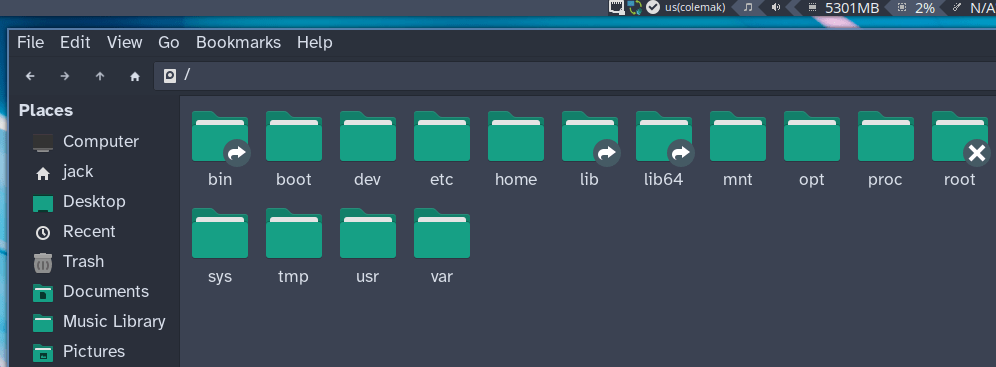
If you’re in the same boat and don’t want to overwrite your Papirus Icons setup, try the Papirus-Folders script. It can be accessed from the Github or with a simple yay install of papirus-folders-git, but the main thing to focus on is the teal folder theme.

If you have Papirus Icons installed normally and want to change them up from the default blue icons, simply install Papirus-Folders and enter this command:
papirus-folders -C teal -t Papirus-DarkOf course, you can replace Papirus-Dark with other variants like Papirus, Papirus-Light, or any of the ePapirus sets. Just be sure to pick the theme you’re using or you may not see any changes. Once you run the command and it succeeds, close every GTK-based file browser and reopen them. You should see your Manjaro-looking folder colors.
Manjaro-like GTK Themes
Since there are several GTK themes that look Manjaro-like out there, I’m just going to go with the most obvious one here: the Matcha GTK Theme. It does a better job getting the Manjaro aesthetic than Breath2 ever did, let’s be honest about that.
To install it, you can clone it from Github and install it into your themes folder, or you can just go with the AUR command:
yay -S matcha-gtk-themeWith the above teal icons and a Manjaro wallpaper, all you’ll need to do is select one of the included themes. I recommend any of the Matcha Sea themes, although it’s very hard to go wrong with Matcha-dark-sea or any of the themes with “sea” in the name. You’ll be fooling your friends into thinking you actually installed Manjaro without any of the disadvantages in no time!

Of course, this is primarily for GTK users like me. If you’re running KDE, you can just go all-in with the breath-theme-git from the AUR. I didn’t actually experiment with this because it prompted me to install KDE and many more packages. Considering the theme was updated upstream on Manjaro’s GitLab page a few months ago, it’s safe to say that it’s still supported.
Ubuntu Yaru and Wallpapers
The latest release of Lunar Lobster actually got me paying attention to Ubuntu for the first time in years, and some of the wallpapers it ships with really caught my attention in particular.
Unfortunately, if you visit the Ubntu Yaru page on Github, you’ll see a message telling you that the theme is already included on Ubuntu releases 18.10 and up. No real instructions on how to install it from source. I gave it a quick try (with skepticism that I would actually get it working) by cding into my .themes directory and cloning the Github repo. I won’t describe the process because it didn’t work, and I wasn’t able to see anything show up in my lxappearance settings for Yaru.
Fortunately, the AUR comes to the rescue. You can simply use yay to install yaru-gtk-theme to get yourself up and running.

If you want to go the extra mile, you can also install the yaru-icon-set among other similar goodies in the AUR.
UPDATE: In the months since I’ve written this post, I discovered that installing the Ubuntu wallpapers from the AUR causes issues for GNOME users when attempting to open the settings menu to change backgrounds. I think it has something to do with how Ubuntu puts coding into their wallpaper packs, but the best workaround I found was to install the desired wallpapers, manually copy them from the backgrounds folders to a desired directory on the system, and then to remove the AUR package. This way, you get to enjoy the Ubuntu wallpapers without issues on GNOME.
Wallpapers From Other Distros
This is the easiest and smoothest thing (in my opinion) that can be installed from the AUR. It’s mostly because installed wallpapers typically wind up in usr/share/backgrounds, so you should usually expect to see them pop up in folders here.
You can easily find wallpapers from Ubuntu and Fedora on the AUR. Simply search on yay for ubuntu or fedora to find so many so many wallpaper packs, especially in the case of Fedora. Unfortunately, many of the Fedora background packages (at the time I write this) are broken due to how they’re linking to a Fedora Project URL that no longer works.
On the bright side, backgrounds from Fedora 32, 33, and 34 can still be easily downloaded at this time from f3X-backgrounds-fedoradesign. Just change the X so that it ends up matching the version of Fedora you want wallpapers from.
I won’t list everything, but here are some of my personal recommendations:
f32-backgrounds-fedoradesignubuntu-backgrounds-lunarmint-backgrounds-vanessa
You can find several more if you also try searching yay for backgrounds.


FireDragon and firefox-kde-opensuse
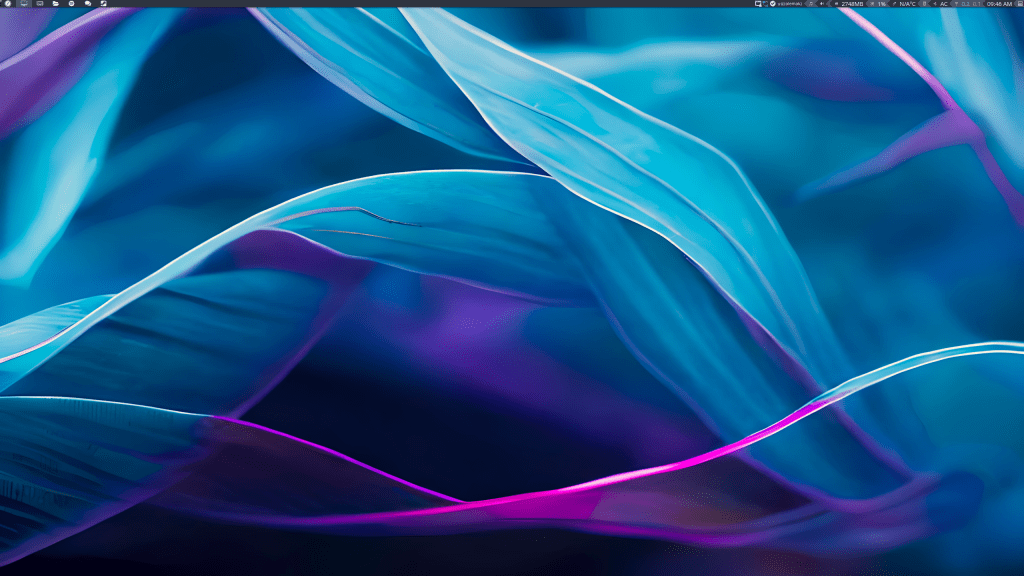
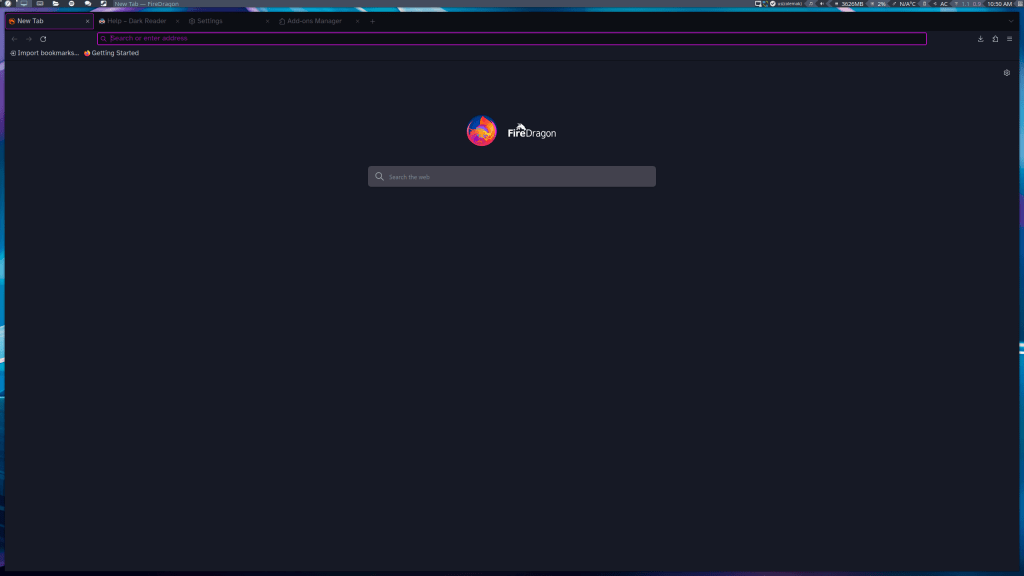
How about two browsers for the price of one: FireDragon from the Arch-based Garuda Linux, and the version of Firefox patched for better KDE integration on openSUSE.
I won’t bother with the latter, as I haven’t used KDE in a long time and don’t want to reinstall the whole desktop environment just to show what looks mostly like Firefox. The biggest advantage I recalled from using it in 2020 was the global menu support, which was cool on KDE if you wanted to replicate a Mac-like workflow.
I did install FireDragon, however. It’s an undertaking for sure, as I had to install several dependencies and wait for the whole thing to finish compiling from scratch. As expected from compiling a browser, it takes a LONG time, so don’t expect to have FireDragon installed and running within five minutes.

It took me 40 minutes to finish installing, but YMMV, and I didn’t see any bin files to try out on the AUR outside of a special one just for unsigned extensions. Still, FireDragon boasts the benefit of having the openSUSE and KDE patches, so it likely supports the global menu as well for any KDE users who want that feature. In addition, it’s based more on LibreWolf than Firefox AND comes with Dark Reader and uBlock Origin out of the box.
Pop-Shell: Tiling Windows on GNOME
I’ll end with what’s possibly my favorite extension meant for other distros. Pop-Shell, developed by the Pop!_OS team, allows you to get auto tiling features on your GNOME desktop. In a way, you can turn your GNOME desktop environment into a WM-like experience with a lot of nice bells and whistles.
While you can get the precompiled binary on the AUR, I do find that it’s sometimes out of date, so I typically stick with the git version on this.
yay -S gnome-shell-extension-pop-shell-gitThis one has to compile, but it only took me a little less than 4 minutes. Nowhere near as long as compiling a web browser like FireDragon.
Once it’s installed, you’ll want to logout or simply reboot. Whatever you prefer. Login to GNOME, open up your Extensions, and toggle Pop-Shell to “ON.” Now you’ll have a little applet in the upper-right that lets you toggle between floating (default) and tiling windows.

Thanks to Github, I was able to rock this extension a few years ago for a good while on my Fedora system as well. Fun Fact: Pop-Shell also comes installed out of the box on the Fedora-based Nobara Linux. I couldn’t actually use GNOME regularly without this extension after a certain point; I really like auto-tiling windows and I feel like this makes GNOME much more usable.
There’s Probably More
I won’t even act like this is a comprehensive list. There are likely more goodies you can find on the AUR or Github that are typically exclusive to other distros. If you can think of any I’ve missed, I certainly wouldn’t mind hearing about them.
I hope anybody reading this found this post helpful in terms of exploring a bit of what the AUR and Github can do for you.
 Sudo Science