

I last wrote about spotify-tui a short while back. This was back when I wrote about how I made a Nord skin for it that doesn’t obscure the play time in the progress bar. As for the player itself, I didn’t really discuss it in much detail.
Friendship Ended with spotify-tui…
It should soon become obvious why, but with my not-so-recent Arch Linux reinstallation, I put off reinstalling and setting up spotify-tui again for multiple reasons:
- spotify-tui is so minimal that it requires a separate daemon or Spotify player instance running to work. Most Linux users opted for spotifyd, a special daemon just for that purpose.
- Speaking of which, setting up spotifyd was a massive pain for me last time. Lots of finicky troubleshooting eventually led to me getting it to work, but then it still wouldn’t always be reliable.
- Once everything was working, I realized that spotify-tui hadn’t been updated since 2021. Ugh.
- That wouldn’t be so bad, except that several features we take for granted in a full Spotify experience were missing, including playlist editing and the like.
Of course, I don’t want to go back to using the graphical Spotify player, but I did put off reinstalling spotify-tui for the longest time. I know I could get things working again like before, but I just didn’t want to go through all of that hassle again.
Now spotify-player is my best friend!
When I had an itch to finally listen to Spotify on my desktop, I didn’t have to reinstall spotify-tui and I certainly didn’t have to resort to using (gasp!) the web player. Fortunately for me, I stumbled across spotify-player, a viable alternative for listening to Spotify within the terminal.
To be fair, I didn’t discover this app all that recently. I had used it for the past two months on my Fedora laptop and really liked how it worked as a whole. The album art feature was also a small impetus that also led me to switch from Alacritty to Kitty. Aside from that, I only ever used spotify-player on my Fedora laptop for a good while, but now I felt like using it again on my Arch system.
Much like my time getting xfce to work with i3, it was a lot easier and smoother on Arch than it was on Fedora. I recalled having issues installing spotify-player on my Fedora system a while back due to something going wrong in the compiling process towards the very end, but regrettably, I don’t remember what the error was or what I did to solve it. Meanwhile, I followed the instructions to install it on my Arch Linux machine and had no problems.
How Do I Install spotify-player?
There are a few caveats to keep in mind.
- As the Github page says, you’ll need a Spotify Premium account. I already have one, but I can’t attest to what happens if you try to use it with a free account anyway. I’m sure the result isn’t all that interesting.
- You’ll need some build dependencies to install it on Linux, specifically from cargo’s crates.io platform.
- Depending on distro, you may have multiple options to install it. For instance, if you’re on Arch, you can just use the AUR to get the precompiled binary as well. Surprisingly to me, you can even get it from a Mac by using Homebrew and a simple
brewcommand. - There are other features you can get with spotify-player that are disabled by default. If you want to show lyrics, album art, notifications, or daemon support, you’ll have to change the commands when building spotify-player from cargo.
- I know I keep referring to it as “spotify-player,” but that’s just because it’s the name in the Github URL. I know the page refers to it as
spotify_player(note the underscore) instead. This one’s minor, I know.
On Arch from Rust and Cargo
That said, here’s what I did from an Arch Linux system to install spotify_player using Rust and Cargo.
- Make sure all of the dependencies you need are installed. That includes installing Rust and Cargo on your system to start building. The dependencies you’ll also need on Arch are
openssl,alsa-lib, andlibdbus. The alternate names for these packages on Ubuntu and Fedora-based systems are also listed on the Github page. - Enter the following command to get extra features like lyrics, notifications, and album art:
cargo install spotify_player --features image --features notify --features lyric-finder- Wait for the installation to finish. If you got any errors, look at what the terminal says is wrong and use that to fix it.
- If you installed successfully, add your install directory to your PATH (replace EDITNAME with your login name on your Linux system):
export PATH=/home/EDITNAME/.cargo/bin:$PATH- Run the application by typing in
spotify_playerinto your terminal. If everything was successful, you will be prompted to enter in your Spotify username and password. - Enjoy your listening experience!
On Arch from the AUR
It seems easier from the AUR, as all you need to enter is yay -S spotify-player and you’re ready to go. While I did try this at first, I wanted the album art, lyrics, and notifications, so I opted to do things the slightly less convenient way.
Granted, I’m willing to admit there may have been a way to enable all of those on the AUR package, but I wasn’t feeling too patient that day.
What Can I Do With This?
From within spotify_player, hit ? to access an immediate cheat sheet of shortcuts, as this app is keyboard shortcut-driven much like spotify-tui was. Unlike that app, however, you have far more options overall.
Also, one caveat: you can control volume within the terminal app, although this may depend on your system. On my Arch system, changing my master volume and volume within the player both worked fine. On Fedora, however, master volume had zero effect on spotify_player‘s volume control; only changing volume within the app did anything. I soon discovered to raise or lower volume in the app, you simply hit + and -, respectively.
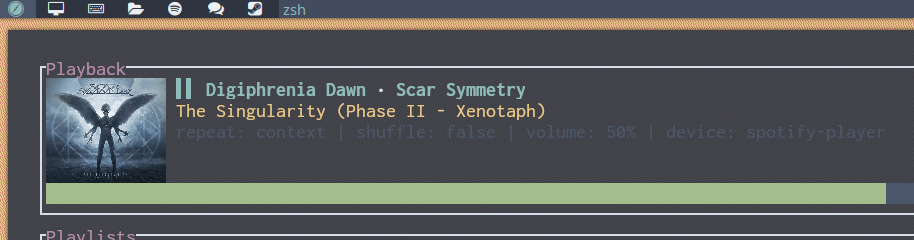
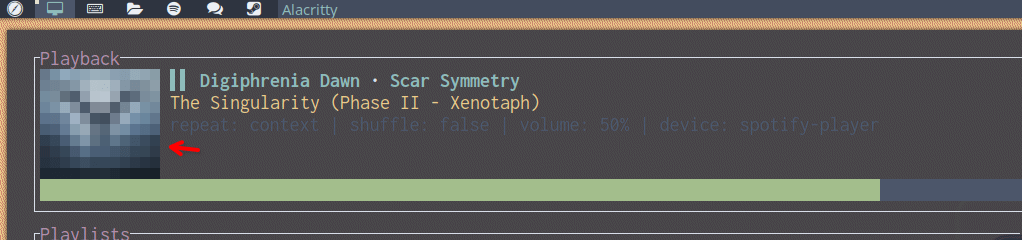
In addition, this is another reason I switched from Alacritty to Kitty, as the latter displays the album art just fine. The former, on the other hand, would give me a mosaic mess of some kind.
What If My Album Art is Shaped All Weird?
Yeah, my album art wasn’t perfectly square-shaped when I installed spotify_player right out of the gate either. From default, it looked more like a rectangle than a square, and that didn’t settle well with me. I had to manually configure that first, but fortunately, it’s not very hard.
To get started, create an app.toml file in your spotify-player config directory if it doesn’t already exist.
vim .config/spotify-player/app.tomlOnce you do, you’ll adjust these three given variables to change the appearance of the album art:
- cover_img_width
- cover_img_length
- cover_img_scale
If you want to see how I adjusted mine after a bit of trial and error, you can just copy/paste this into your app.toml and save changes.
cover_img_width = 5
cover_img_length = 12
cover_img_scale = 1.0
Afterward, reload spotify_player and see if the album art changes are to your liking. If they’re not quite what you like, play around with the numbers and see what kind of results you want.
There are far more variables you can plug into this file to change other aspects of the app. These are just the three I chose to focus on. If you want to find the rest of them, just check the Github page and see if you want to change anything else.
Conclusion
I like spotify_player much more than spotify_tui and don’t see myself ever going back to the latter.
How do you like to listen to Spotify? Do you use Spotify on or from Linux, or do you prefer to listen to Spotify on other platforms or devices? Perhaps you use another service entirely?
 Sudo Science
One response to “Switching from spotify-tui to spotify-player.”
[…] I wanted to seriously commit to enjoying my offline music again, which is why I set up mpd and ncmpcpp (I really had to double check the spelling of the latter) on my Arch Linux machine. With these properly configured and installed, I can now enjoy my music in the terminal (again). […]
LikeLike