
The other day, I saw a video from The Linux Cast on YouTube about how to set up i3 with XFCE.
I was intrigued with the result at the end, as I had set up MATE with i3 last year on my Fedora system. However, I gave up on using it due to some overall jankiness from the setup, but seeing i3 with XFCE looked nicer and more reliable overall.
This was EASY on Arch Linux!
With that in mind, I waited until I went home later that day to try the setup out with my Arch Linux system. It’s an understatement to say I loved the result. In fact, I haven’t really touched my usual Awesome WM setup in several days because of this (not that I have anything against Awesome; it’s an excellent window manager).
The video made the process so simple to follow along with when I tried to get this working on Arch. The video uses EndeavourOS, but it’s essentially much closer to Arch Linux than the likes of Manjaro, so I had no issues installing the packages necessary and following all of the steps.
After using the i3 and XFCE setup for the past weekend on my Arch Linux machine, I decided to go ahead and give it a go on my Fedora system yesterday.
This was a HEADACHE on Fedora…
I wish I could say it was just as easy to do this on Fedora, but it wasn’t. I wasted a lot of time troubleshooting and fixing issues just to compile a few prerequisite packages, and then I had everything working briefly only to see it stop working after a reboot.
But eventually, I got things to work. I’m almost astonished I got the setup up and running on my Fedora machine in the end, and I even restarted multiple times just to see if everything stayed just as I left it or if something changed. Thankfully, everything is exactly as I set it up.
That’s why I decided to write this little guide to help anybody else who ran into the same issues I had getting i3 and XFCE working on Fedora. Many of the same steps I’m going to go through happen to be in the video above, although I’m going to cover certain steps or caveats here and there to take into account that I’m doing this on a Fedora system instead of Arch.
How to Set Up i3 with XFCE on Fedora
- Install the XFCE desktop on your Fedora system if you don’t have it already.
sudo dnf install @xfce-desktop-environment- Install both i3ipc-glib and xfce4-i3-workspaces-plugin in this order.
- This one was a massive pain for me because I needed to hunt down some dependencies not listed on the Github pages, including several not-so-obvious ones like
xfce4-panel-devel,libxfce4, andlibxfce4ui-devel. Obviously, you’ll need the other dependencies listed on the Github page, but if you have anything missing, the./autogen.shsteps will never work. - Don’t be tempted to add any COPR repos. They just won’t work. Compiling from Github might seem less convenient, but it is absolutely worth it.
- This one was a massive pain for me because I needed to hunt down some dependencies not listed on the Github pages, including several not-so-obvious ones like
- Login to XFCE’s regular session.
- Disable both xfdesktop and xfwm4 from starting up on the “Session and Startup” menu. (Set startup style to “Never” on both.)
- Add i3 to the list of applications to Application Autostart (hit Add and then enter in
i3for the command; name and description can be whatever you like as long as you can easily find and identify it). - Open a terminal and manually uninstall both xfdesktop and xfwm4 just to be safe.
sudo dnf remove xfdesktop xfwm4- I HAD to do this because despite how I set startup style to “Never” for both xfdesktop and xfwm4, they would still start back up on their own. I’m still not sure why this is, but I eventually got it.
- Don’t worry about possibly “breaking” the rest of XFCE this way; XFCE is designed to be modular. You can pick and choose what you want to be in it.
- Set up an i3 config file (
.config/i3/config) with your preferences and hotkeys. I just used my old config file from when I had i3 running with MATE (complete with a wallpaper setter and compositor), but you can use whatever setup you like. - Erase all default XFCE shortcuts from the GUI menu (Keyboard > Application Shortcuts and then clear everything).
- As The Linux Cast explains, it makes much more sense to have your shortcuts all in one place, and your i3 config is a great place for that.
- Remove the default workspaces from XFCE panel if you still have it present.
- Reboot entire system.
- Login again to your XFCE session. i3 should be started with XFCE panel now.
- Add i3 workspaces to XFCE panel and customize your preferred hex colors.
It Works! Everything’s Working Fine For Me on Fedora!
If you had zero issues getting this to work, that’s awesome. In fact, I’m jealous. I wish it were less complicated for me compared to setting up i3 and XFCE on my Arch install.
Something Still Doesn’t Work For Me?
If you followed all of these steps and you’re still running into issues getting XFCE to start seamlessly with i3, I have one last ditch troubleshooting step that might work.
With sudo privileges, open /etc/xdg/xfce4/xfconf/xfce-perchannel-xml/xfce4-session.xml and find the space that reads value="xfwm4". Once you find it, change the value so that it reads value="i3", save changes, and then reboot your system.
I Don’t Like i3. Can I Use Another WM?
Absolutely. The nice thing about XFCE being so modular is that it easily lends itself to switching any component or piece, and that includes the window manager itself.
I had considered trying this with bspwm, but I didn’t like the idea of installing and configuring sxhkd again like the last time I tried using it. If I didn’t want to keep my Awesome WM setup intact, I could easily hide the wibar by default and then use Awesome within XFCE as well.
Of course, instructions and prerequisites may vary depending on the WM you want to use. Just be sure to do your due diligence. While I’m not all that fond of i3 on its own, it seems to be the go-to that everybody documents when it comes to switching out a window manager in a desktop environment easily. Plus, I was a bit impatient in getting this up and running, and i3 is extremely easy to configure.
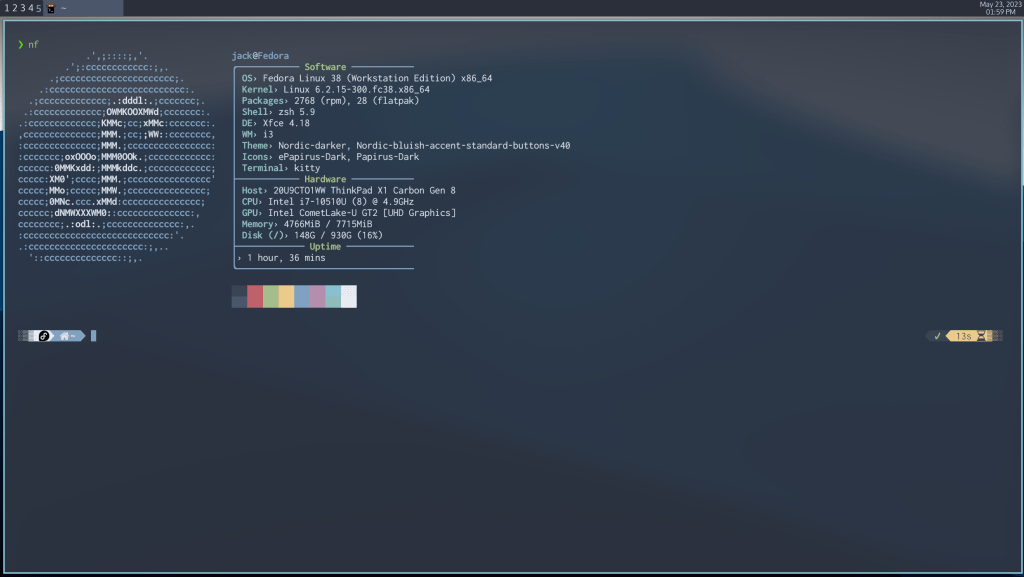
One last caveat is that my panel has a bit of a delay in appearing when I start up XFCE with i3. However, considering all the troubleshooting I had to go through just to get a cohesive setup with both, I’m willing to settle with waiting a few extra seconds.
A Minor Update: What Happens if it Suddenly Stops Working?
It’s been a while since I first published this post, but in the time I first tried this several months ago, my XFCE setup eventually stopped working. Logging in at some point presented me with a blank wallpaper, the one taskbar I set up, and an invisible cursor that could barely open the menu.
Fortunately, I was able to fix this by editing the aforementioned /etc/xdg/xfce4/xfconf/xfce-perchannel-xml/xfce4-session.xml a second time. Lo and behold, sometime during an update, Fedora overwrote the file to have xfwm4 and xfdesktop as values again, which broke the whole setup. Changing them to say i3 and rebooting fixed everything.
What About Spiraling Windows?
Something I never really covered dealt with how i3 simply opens new windows to the right by default. Opening up enough terminal windows makes them look like thin narrow columns taking up the screen instead of spiraling or the like. Hardly useful if you don’t have an ultrawide monitor.
Fortunately, I was also able to solve this thanks to this guide on the Endeavour OS forums. Again, just like the video from The Linux Cast, this is a mostly Arch-centric tutorial.
It turns out you need to install a python script simply called autotiling. The Endeavour OS guide says you can install this from the AUR, but since we’re on Fedora, we don’t have that option.
Instead, try installing the script from Pypi (assuming you have pip installed on your system).
pip install autotilingThe Endeavour OS tutorial also suggests autostarting the script in your i3 config, but I found this didn’t work at all on Fedora, at least when I tried it. I set my $PATH to include the relevant bin directory (as the terminal prompt will suggest to you after you finish installing it from pip), but it was as if the script was unable to start from the config file. However, I did confirm that the script would run! If I opened a terminal window and simply typed autotiling, it worked, but who wants to do that on login each time?
Thankfully, there’s a solution. After confirming that I could start the script from a terminal window, I went into my XFCE autostart menu to add autotiling to start alongside i3 on login. After rebooting my system, everything worked exactly as I expected.
Do you prefer to use a tiling window manager or a desktop environment? Or do you try to bring both together like in this setup? If so, what is your setup? If not, have you ever considered the possibility of replicating this sort of combined setup to bring the best of tiling and a DE together? In light of this development, did you have issues with the .xml file updating and breaking everything too?
 Sudo Science