
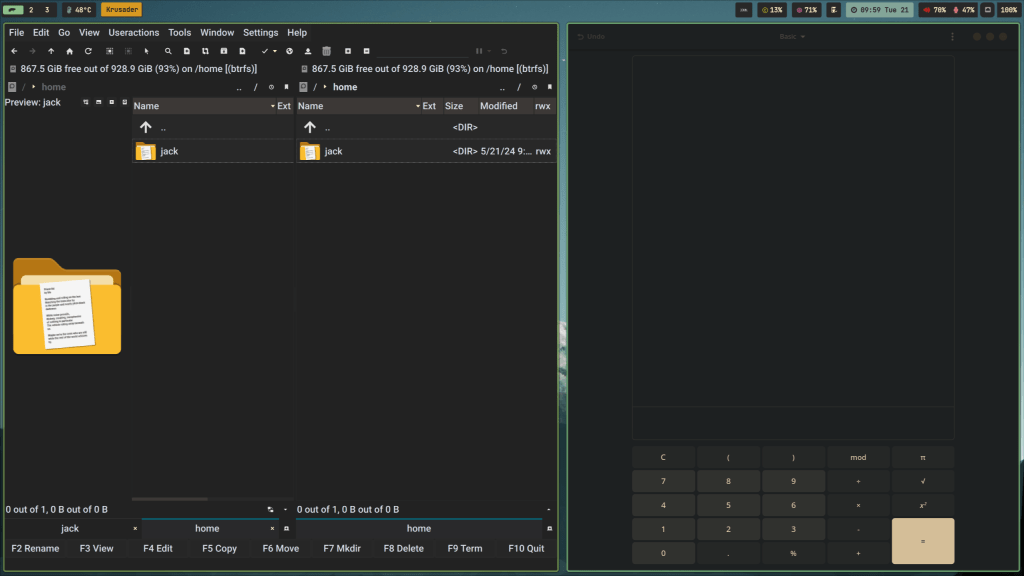
As I detailed in my recent reinstallation of Arch Linux, I had quite a bit to set up all over again for the first time. That also included my keeping Qt5 applications consistent with my GTK equivalents. While I do prefer some GTK-based apps, I happen to enjoy a good handful of Qt apps too. My file browser of choice is the GTK-based Nemo while the Qt-based Okular is my preferred PDF reader. I love using the GTK-based Cheese to manage camera feeds while the Qt-based Spectacle is my go-to screenshot tool.
Part of why my system has such a hodgepodge of apps using both toolkits deals with how I run Awesome as my window manager. I can still use a full-on desktop environment, sure, but a window manager feels so much more efficient for me these days, and one of the big draws to a WM is being able to curate my ideal apps and create my own experience.
But going back to what I said about app consistency, I also love to rice and theme my system whenever I have a chance. As I have said time and time again, I love going all-out with color schemes, icon sets, and making things match.
Everything. Must. Match.
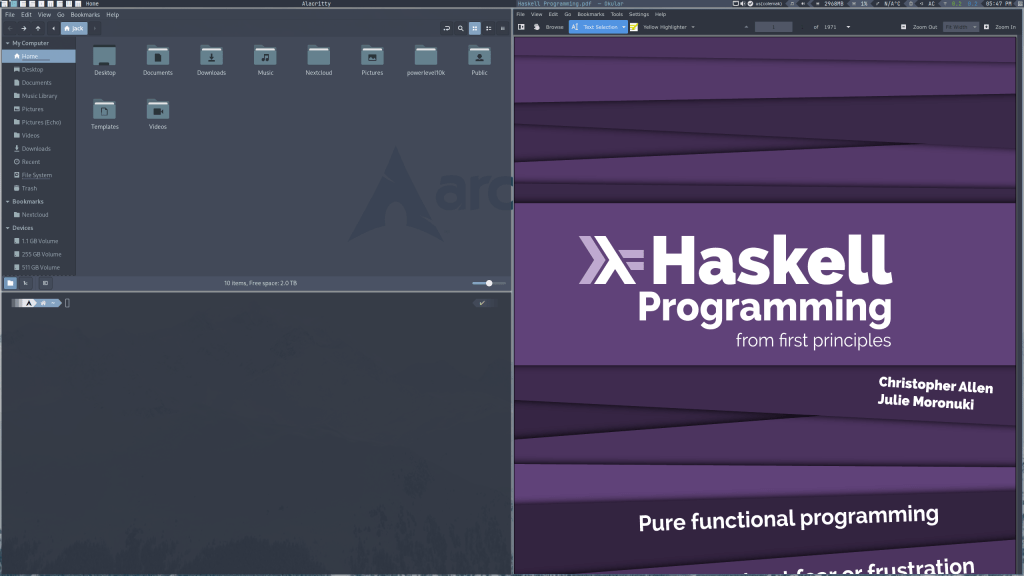
Of course, getting my apps to respect the same themes and overall looks wasn’t as straightforward as it might appear. I mean, the Archwiki always has pages on this sort of thing, but it doesn’t always make everything so clear for me. As great of a resource as it is, I sometimes have to try and figure things out on my own when it doesn’t help.
However, I did get my Qt and GTK apps to match on my previous installation of Arch and my current Fedora installation. It wasn’t a matter of “How do I even do this?” so much as it was “How did I do this again?” After a few minutes, I figured it out again, and I decided to document everything.
So How Do I Get Started Making My GTK and Qt Apps Match?
This is a guide mostly centered around Arch Linux, although it should work on any Arch-based distros (Endeavour, Arco, Garuda, Manjaro, etc), but here’s how I did it. Packages should even work on other distributions (anything RHEL or Debian-based, too), but the packages in step 1 may have different names depending on the package manager. Your mileage may vary.
If your setup is anything like mine, you’ll have a very easy time setting a GTK theme using something like lxappearance to select your theme and icons. However, this tutorial will primarily focus on getting Qt apps to conform to a theme of your choosing, as that isn’t as cut and dried in this case.
STEP 1: Install kvantum and qt5ct with this command:
sudo pacman -S kvantum qt5ctSTEP 2: Open up Kvantum Manager once it’s installed.

STEP 3: Select the option to Change/Delete Theme. Pick a theme and hit the button to “Use this theme” in order to see what it looks like.
STEP 4: If you like what you see, hit the “Quit” button or just close Kvantum Manager.
STEP 5: Open up the Qt5 Configuration Tool next.
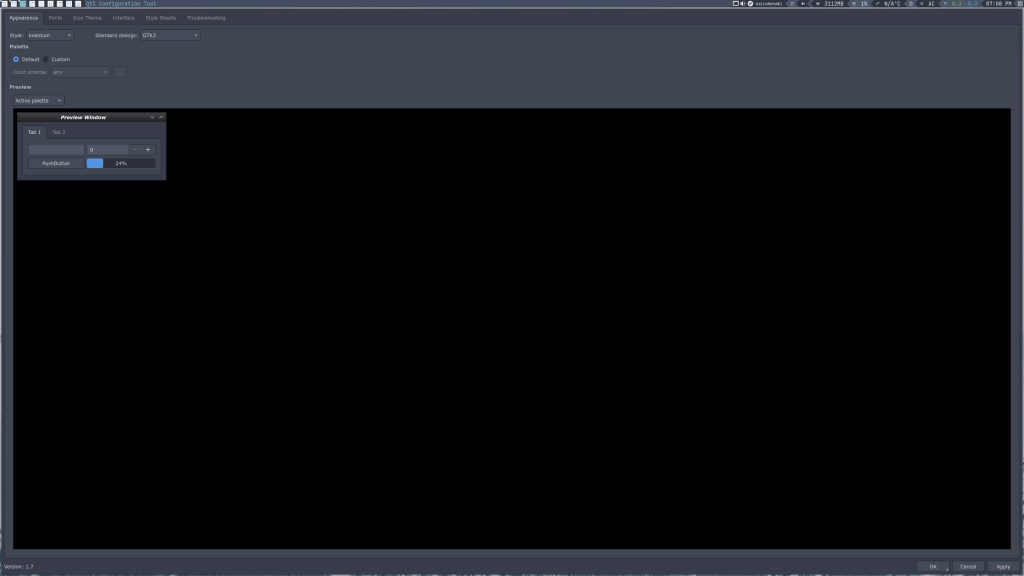
STEP 6: Where it says “Style:”, select “kvantum”. You can change other things if you like, like icon themes (really, look around the app and see for yourself).
STEP 7: Hit “Apply” and ignore any error messages that may pop up; we’ll be addressing that momentarily.
STEP 8: Create a new file in your Home directory called .profile if it doesn’t already exist. Pop open a fresh terminal to do this in the blink of an eye with the following command.
vim .profileYou could always replace vim with nano or something else if you aren’t comfortable with vim. Alternatively, you could always start a graphical text editor and save the file as .profile once you finish the next couple of steps.
STEP 9: Enter in the following text into your .profile document.
export QT_STYLE_OVERRIDE=kvantum
export QT_QPA_PLATFORMTHEME=qt5ct
STEP 10: Save changes and close .profile, then reboot your system.
STEP 11: Log in and launch some Qt apps. You should see the theme you selected taking effect. You’re done!

You Know, It Would Have Been Easier To Do [Insert Something Else Here]…
Maybe there is a somewhat easier way to make this more optimal or efficient; I’m more than willing to admit that. If you know any ways I could have possibly done so, feel free to leave a comment or send me an email letting me know. In the meantime, I did do this and I did get results.
Did you give this a shot? Do you like to have your GTK and Qt applications match? If so, what styles do you use? Did this tutorial help you in any way? Or did you run into another snag entirely?
 Sudo Science